Using the cluster
Check out our self paced tutorial about the Linux Bash, if you have never used it before. We assume you are proficient enough using a CLI (Command Line Interface) and are able to connect using SSH or are using the JupyterHPC Desktops.
After creating an account and successfully connecting, you can immediately access the cluster. There are four topics you need to know:
- Selecting the correct partition
- Writing a job script
- Setting up software
- Getting and checking the results
HPC nodes are computers that are similar to personal computers like laptops or desktop computers, but far more powerful. They have many more processor (CPU) cores and memory, can have multiple GPUs and usually need large cooling systems to keep them from overheating. There are compute nodes, their purpose is to run computations in the form of jobs submitted by users, and login nodes which you connect to from your own computer to submit such jobs. Check out the figure for a brief overview of what a cluster is and how the three parts, login nodes, scheduler, and compute nodes are connected and organized.
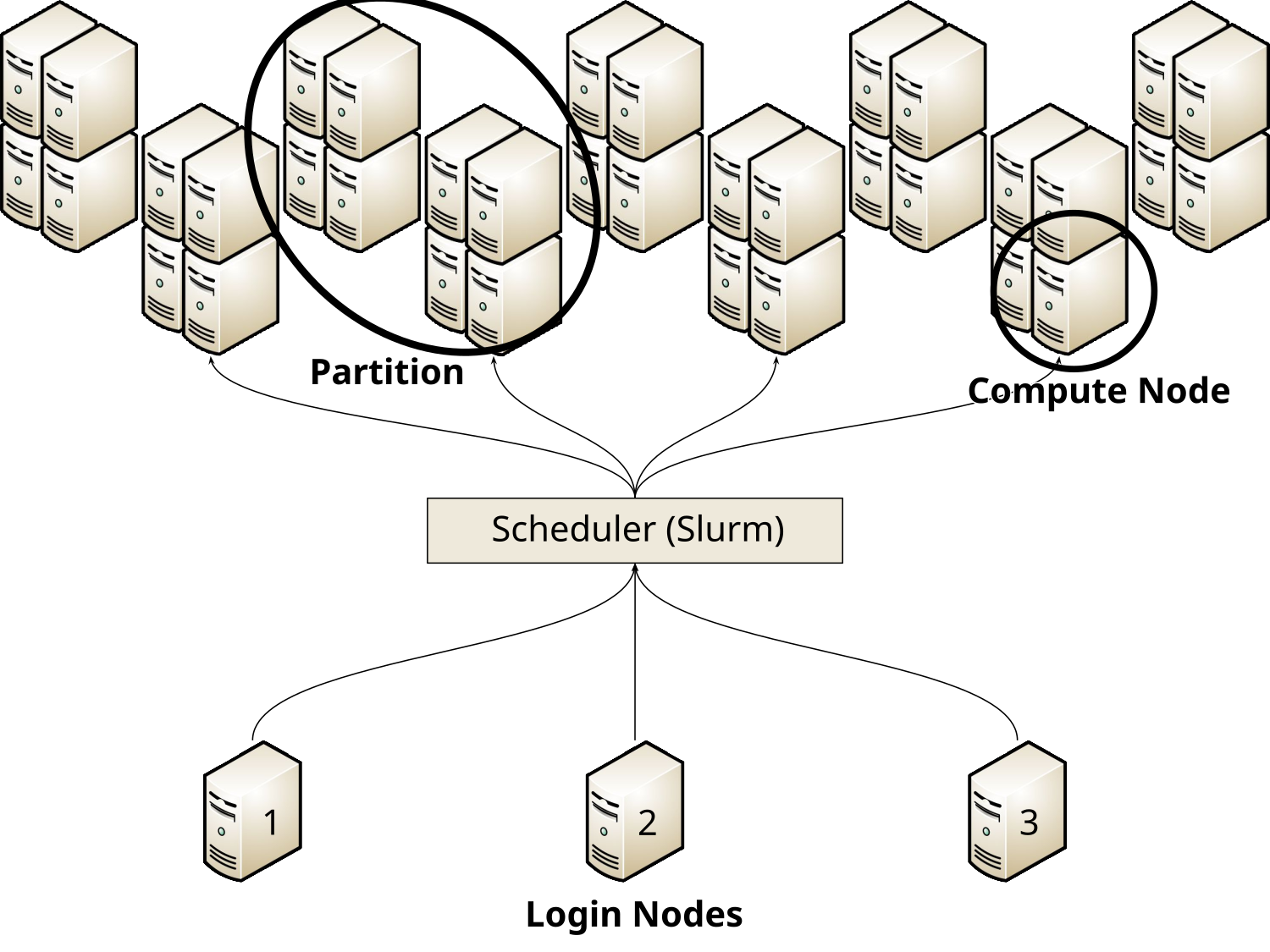
This is a cluster
A cluster consists of a number of login nodes, which are connected to the scheduler, which handles the incoming jobs and distributes them efficiently and fairly over the compute nodes. The compute nodes are organized into partitions which consist of multiple compute nodes of the same type.
Selecting a partition
A partition is a selection of nodes that are very similar to each other with regards to their hardware and general configuration. Between different partitions, the nodes typically vary in model or generation of CPUs, number of cores, they have different amounts of RAM and may or may not have GPUs. There is a rather large number of partitions available, and these partitions can be used in a variety of ways. Here are some brief suggestions for you:
- SCC:
scc-cpuorscc-gpu - NHR:
standard96sorgrete - KISSKI:
kisski
Both SCC and NHR offer CPU and GPU nodes to all users. KISSKI only offers GPU nodes, so we only suggest one partition.
A full list of all available partitions can be found under Compute Partitions.
Setting up software
Once you are logged in you have access to our module system.
This is used to load software, which can be a compiler like gcc or MPI libraries openmpi.
It can also be software packages such as gromacs or openFoam and many more.
You load modules by using commands like module load gcc for example, which will load the default compiler.
In case you need a specific version of a module you can specify it: module load gcc/14.2.0.
Similarly, you can load software like gromacs with the same command: module load gromacs.
To see what modules are available, try module spider.
You can also search for modules using module spider SEARCHTERM.
See Available Modules for a full list.
Should you need Python, please check out or dedicated Python Interpreter page, which also explains different kinds of environments (like Conda or uv) you might want to use.
Writing a job script
After deciding on a partition, you should create a job script.
A script is a file that contains a list of commands to run, typically called a “shell script” (the shell is the command prompt you are typing your commands into).
The default shell on our HPC system is called bash and scripts for it “bash scripts”.
A job script then, is a bash script that tells our scheduler what to run, how many resources you need and for how long you need them.
You tell the scheduler your requirements by adding lines like #SBATCH -p scc-cpu to the top of the job script.
You can specify how much time you need using #SBATCH -t 10:00 for 10 Minutes.
Note that the scheduler kills a job after the time limit is reached and if you don’t specify a time limit, a default value (almost always 12 hours) is used.
Selecting the number of CPU cores, the amount of RAM, or a GPU (if you need one) is also simple. Most of our compute nodes have around 96 CPU cores and at least 200 GB of RAM.
- CPUs (the scheduler treats CPU cores and CPUs synonymously) are specified with
#SBATCH -c 24, indicating you want 24 of them. - Use
--memto select how much memory (RAM) your program will need.
Knowing how much RAM you need is a bit tricky. If you are unsure what to put here, leave out the option altogether and the scheduler will give you a sensible default value (based on the number of cores you requested) in most cases.
Requesting a GPU works similarly.
You can request one or more GPUs, most of our GPU nodes have 4 GPUs in them.
Request a partition that has GPUs available, name the model and how many you need.
It could look like this if you need one A100 GPU:
#SBATCH -p grete:shared
#SBATCH -G A100:1
Warning
Partitions have different configurations deciding, for instance, how resources are allocated. Shared partitions allow multiple users to run jobs on a node when each only use part of the resources. For example, you can get 24 CPU cores from a 96-core node or a single GPU from a node with four GPUs, allowing others to use the remaining 72 cores and 3 GPUs.
But some partitions are non-shared or exclusive. If you request 24 cores in a 96-core node, you will only get access to the 24 you wanted and are wasting the other 72 CPU cores. Similarly, requesting one GPU from a 4-GPU node in a non-shared partition will waste 3 of the GPUs for the whole time you are working on it. No one else will be able to use those resources, and all resources you block this way will be counted towards your total consumption, not only the ones you actually used.
Specifically, exclusive partitions include kisski, grete, standard96s, and more.
Some have shared counterparts like grete:shared and standard96s:shared, but not all.
There is no shared kisski partition for example.
Other partitions are always shared, without having :shared in their name.
Please see the column Shared in the tables here (for CPU partitions) and here (for GPU partitions) for an overview.
Please be careful which partition you select and find a way to use all resources you reserve efficiently!
Once you have specified what you need, you set up the environment and start the program. An example job script without specifying details can look like this:
#!/bin/bash
#SBATCH -p ...
#SBATCH -t ...
#SBATCH -c ...

module load gcc openmpi

srun your-program --options
Once your job script is written, you can save it to a file (e.g. jobscript.sh) and hand it to the scheduler using the command sbatch jobscript.sh.
This will return a job ID that is unique for this specific job and can be used to refer to it again later.
We will give you a few examples of this with different partitions below.
SCC
On the SCC, all partitions are shared, so we can freely select fewer resources than one individual node has.
#!/bin/bash
#SBATCH -p scc-cpu
#SBATCH -t 2:00:00
#SBATCH -c 24

module load gcc openmpi

srun your-program --options
This is also true for requesting GPU(s).
#!/bin/bash
#SBATCH -p scc-gpu
#SBATCH -t 2:00:00
#SBATCH -G A100:1

module load gcc cuda

srun your-program --options
NHR
Most NHR partitions are exclusive, meaning we should use all resources of one node (or multiple nodes).
#!/bin/bash
#SBATCH -p standard96s
#SBATCH -t 2:00:00
#SBATCH -c 192

module load gcc openmpi

srun your-program --options
Note that we request 192 cores, instead of 96, because of something called “Hyperthreading”, which makes a physical CPU core show up as two logical cores.
We need to specify a shared partition if we do not want or need a full node.
#!/bin/bash
#SBATCH -p standard96s:shared
#SBATCH -t 2:00:00
#SBATCH -c 24

module load gcc openmpi

srun your-program --options
The same is true for the GPU partitions. Most nodes have 4 GPUs, and we should request all of them.
#!/bin/bash
#SBATCH -p grete
#SBATCH -t 2:00:00
#SBATCH -G A100:4

module load gcc cuda

srun your-program --options
We can select fewer GPUs when using a shared partition.
#!/bin/bash
#SBATCH -p grete:shared
#SBATCH -t 2:00:00
#SBATCH -G A100:1

module load gcc cuda

srun your-program --options
KISSKI
The KISSKI partition is not shared, so we need to select all available GPUs of a node and use them.
#!/bin/bash
#SBATCH -p kisski
#SBATCH -t 2:00:00
#SBATCH -G A100:4

module load gcc cuda

srun your-program --options
Getting and checking results
Now that you have submitted your batch script, it’s time to wait.
The scheduler will put you in a queue and look for available resources.
This process can take anywhere from a few minutes to a few days.
You can check on your job’s status using the command squeue --me.
Output from this command might look like this:
[nhr_ni_test] u12345@glogin13 ~ $ squeue --me
             JOBID    PARTITION         NAME     USER  ACCOUNT     STATE       TIME NODES NODELIST(REASON)
          12345678 standard96s: jobscript.sh   u12345 nhr_ni_t   PENDING       0:00     1 (None)
When the job starts, the state will change to “running”.
Once it entered the running state, you will also get a file of the form slurm-%j.out with %j being your job ID.
In this example, the file would be called slurm-12345678.out.
It contains information about your job as well as the output of your program.
By default, this is the so-called “standard output” that you would normally get printed on your terminal, as well as the “standard error”.
The error “channel” can also be directed to a separate file by specifying a different filename with the parameter -e.
For example:
#SBATCH -e slurm-%j.err
After your program ends (or is killed because the requested time ran out), the job’s state will change from “running” to “completing” before it will finally disappear from the queue. A final few lines in the output will contain information about the resources used.
If you need to stop your own job or cancel it before it started, you can use the scancel command, which you provide with the job ID you want to cancel as an argument.
In our example above, you would run scancel 12345678.
An example listing of the output file slurm-12345678.out could look like this:
================================================================================
JobID = 12345678
User = u12345, Account = nhr_ni_test
Partition = standard96s:shared, Nodelist = c0270
================================================================================
[2026-02-03T16:45:34.127] error: *** JOB 12345678 ON c0270 CANCELLED AT 2026-02-03T16:45:34 DUE to SIGNAL Terminated ***
============ Job Information ===================================================
Submitted: 2026-02-03T16:43:09
Started: 2026-02-03T16:44:06
Ended: 2026-02-03T16:45:34
Elapsed: 2 min, Limit: 10 min, Difference: 8 min
CPUs: 12, Nodes: 1
Estimated Consumption: 0.20 core-hours
================================================================================
Now you should have an overview of most things you need to know before you get started. For more details, check out our courses, our self-paced tutorials and refer to the how to use section of this documentation.