Using SSH with PuTTY
Setting up PuTTY (Windows)
PuTTY needs to be configured using the GUI; it does not support the OpenSSH config format. External tools are needed for X11 forwarding. Therefore, we recommend using the built-in Windows OpenSSH client or MobaXterm. However, if you still wish to use PuTTY, you can follow this example.
Session and hostname to connect
Info
This example establishes a connection to the Emmy Phase 3 login nodes. Please replace the hostnames with the correct ones for the cluster island you intend to use.
After starting PuTTY, this is the first screen that appears. Here, you will enter the hostname you want connect to. Please refer to Logging In for the list of login nodes.
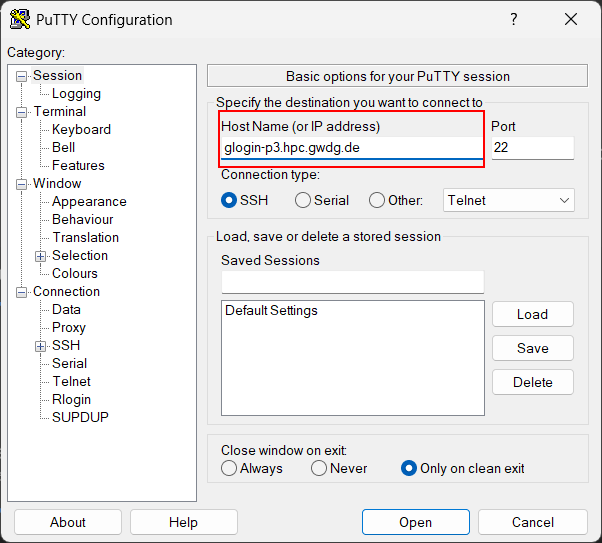
Putty Start Screen Enter Hostname
Entering the hostname to connect in PuTTY
Enter username
It makes sense to also configure the username, or you will need to enter it on every connection attempt. To set it, go to “Connection” -> “Data” and enter the username in the field “Auto-login username”.
Note
Replace u12345 with your assigned username.
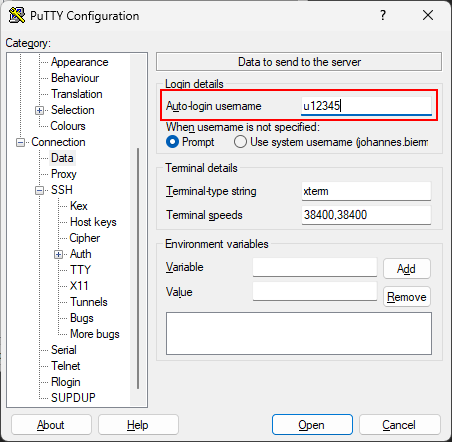
Enter The Login Username
Entering the Login-Username in PuTTY
Generate an SSH Key Pair
To use our cluster, you need to generate an SSH key pair consisting of a private and a public key.
In PuTTY, private key files have the extention .ppk and the public key can be saved with an arbitrary extension.
SSH keys are generated by the program PuTTYgen.
To create a key pair, follow these steps:
- Open
PuTTYgen - Set the key parameters at the bottom to either “EdDSA” and “Ed25519 (255 bits)” for
ed25519(recommended) or “RSA” and “4096 bits” forrsa(fallback). - Click Generate and follow the instructions to generate the key.
- Enter a passphrase to encrypt the key. Choose a secure passphrase that you can remember but others cannot figure out!
- Click both Save private key and Save public key to save the respective key to disk. Note that PuTTY uses a different storage format for its keys than other clients. If you want to use a key with other tools, export the private key with Conversions -> Export OpenSSH key
Upload your public key to Academic Cloud
In PuTTYgen, copy the text in the box labeled “Public key for pasting into OpenSSH authorized_keys file:” to your clipboard and proceed with the steps described here.
If you already closed PuTTYgen or want to use a key pair you created earlier, open the .ppk file in PuTTYgen by clicking Load.
The text to copy is highlighted in the screenshot below:
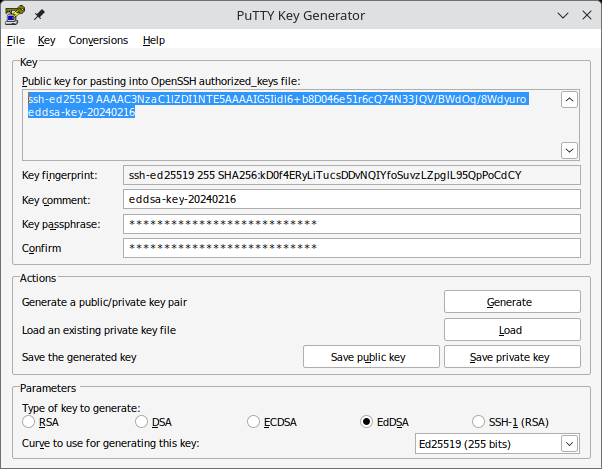
Selecting the public key text in PuTTYgen to copy it.
Set the path to the SSH Key
By default, PuTTY uses password authentication if no SSH key is provided.
However, password authentication is disabled on our cluster, as it is less secure than key based authentication.
You need to select the SSH key you generated earlier under “Connection” -> “Auth” -> “Credentials”.
Then under “Private key file for authentication” click on “Browse…”.
Select the SSH Private key file ending in .ppk.
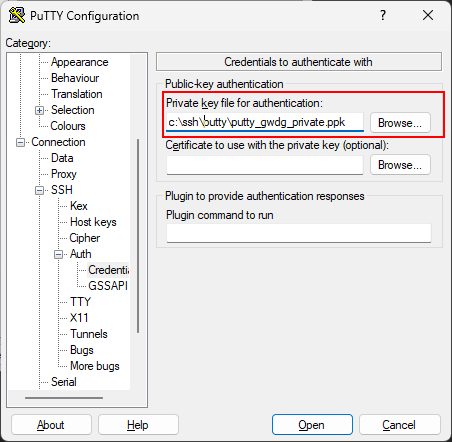
Putty Select SSH Key
Selecting the private key file in PuTTY
Save the settings
After making the settings, save them. Otherwise you will need do everything again when you want to login next time. To save the settings, go back to “Session”. Under “Saved Sessions” type in the setting name you want to save (in this example “GWDG SCC”) and click the “Save” button.
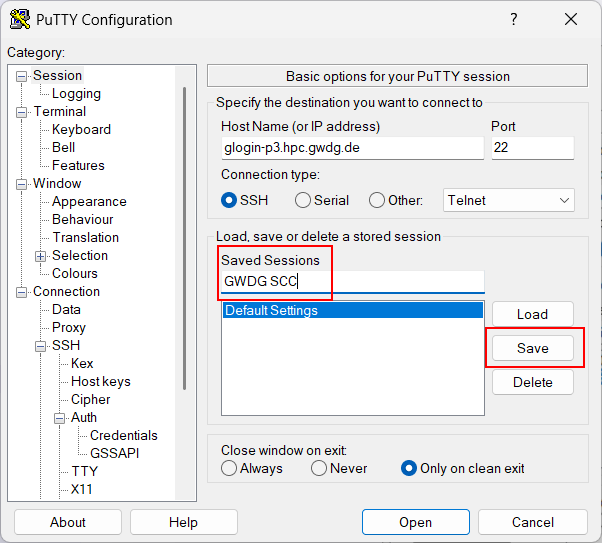
Putty Save Settings
Saving all the settings as profile in PuTTY
Login
Finally, click the “Open” button (see the previous screenshot) to open the connection. If you have done everything correctly, it will ask for the SSH private key password, after which the connection will be established.
X11 Forwarding
You will probably find it easier to use X11 forwarding with MobaXterm, which has builtin support. If you still want to use PuTTY, you will need to run a separate X11 server.
You can for example use vcxsrv, which is a fork of Xming. Install it (there is a version that does not require administrator privileges) and start the program “XLaunch” from the start menu. Set up the wizard as follows:
Set it to multiple windows Set to start no client Set it to disable access control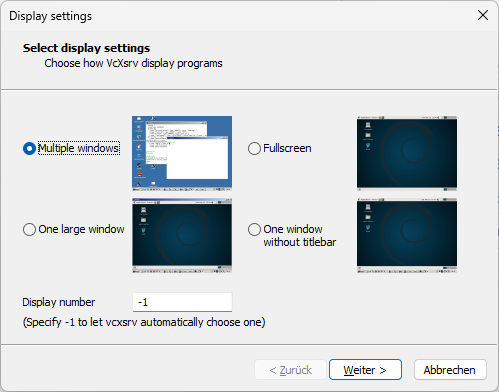
vcxsrv Configuration Screen settings
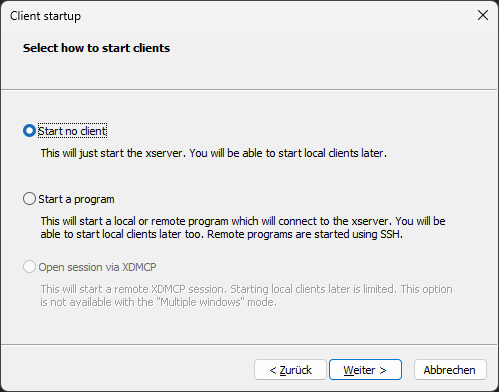
vcxsrv Configuration Client Settings
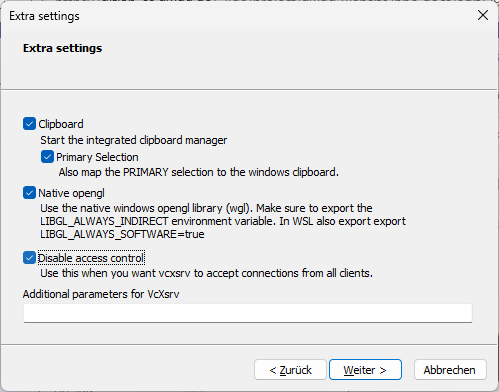
vcxsrv Configuration Access Control
Now vcxsrv is running.
To find the display number, locate the X icon next to the Windows clock in the bottom right-hand corner of the screen, Right-click on it and select “Show Log”.
Look for the entry DISPLAY.
Copy the value to the clipboard - you will need this value in the next step.
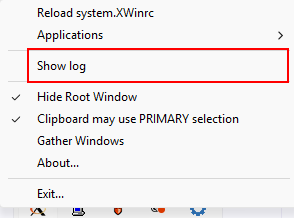
vcxsrv Configuration Toolbar
Right-click on the toolbar icon to access the log
Using the external X11 server with PuTTY
After follow the complete setup instructions above, click on “Connection” -> “SSH” -> “X11” in PuTTY and select “Enable X11 forwarding”.
For “X display location”, paste the address that you have copied to the clipboard in the last step.
It is usually 127.0.0.1:1.0.
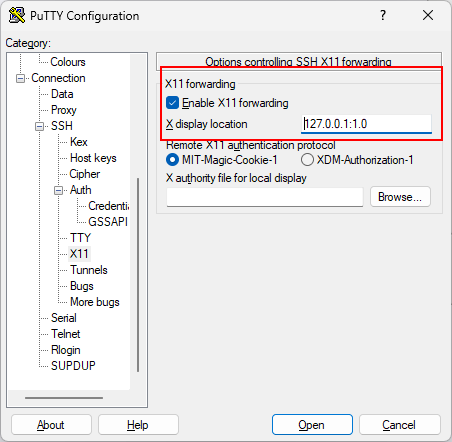
Setup X11 forwarding
Enable X11 Forwarding and set the display name
Using a Jumphost to connect (optional)
Note
These steps are usually not necessary.
They are only required for the legacy SCC login nodes and dedicated frontend nodes for workgroups that have their own cluster island.
Check if your login node has a ProxyJump option in the examples on the main Configuring SSH page.
If in doubt, ignore this section.
A jumphost is an intermediate host through which the SSH connection is forwarded. It is possible to use a jumphost with PuTTY if the target host is not reachable directly.
The jumphost you would use to connect to the GWDG HPC system also requires using a private SSH key. As the private key should never leave your personal computer, the key needs to be passed through the first step of the connection to the target host. PuTTY does not support that out of the box.
OpenSSH has a component called an “SSH agent” to accomplish something similar, but since PuTTY can’t make use of that, we will use the tool “Pageant”. Pageant is a tool for Windows that keeps the private SSH keys in memory and passes it through to the target host, allowing you to chain SSH connections without the key leaving your client computer.
Start pageant.exe and click “Add Key”.
Select the file with the private key.
Pageant will ask for the key password.
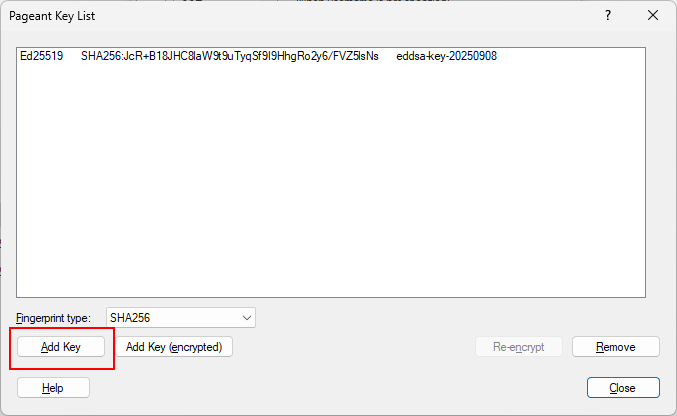
Pageant Key Manager
Adding a private key to Pageant
Leave the program running in the background. You can access it again via the systray (the symbols to the right of the task bar, next to the clock in Windows).
Configuring the Jumphost in PuTTY
Back in PuTTY, go to “Connection” -> “Proxy”.
In the proxy type dropdown, select “SSH to proxy and use port forwarding”.
Then enter the Jumphost hostname (in this example glogin.hpc.gwdg.de).
For port please enter 22.
Now go back to Session and save the session (see next section).
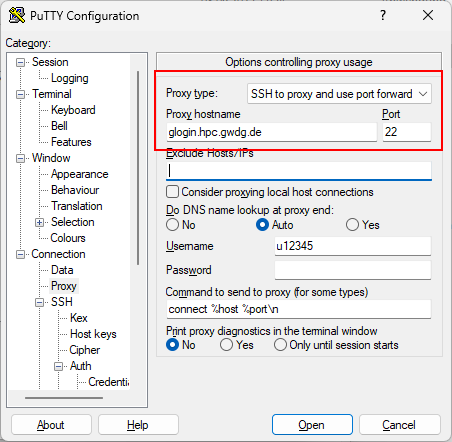
Configuring Jumphost in Putty
Setting a Jumphost in PuTTY
Go back to the start page and save your settings.