Using SSH with MobaXterm
Setting up MobaXterm (Windows)
There are two ways to connect to SSH servers in MobaXterm.
You can use the existing OpenSSH configuration, in which case the connection will be established within the local terminal with the ssh command.
This is the supported and recommended way.
Please make sure to set the Terminal home and root directories to a persistent folder (see the warning below), or your keys and configuration will be lost after the next reboot. Once you have set the directories, you can simply follow the regular Configuring SSH guide. To connect to the cluster, click “Start local terminal” and enter your ssh command as described in the guide or use one of the SSH aliases from the .ssh/config file.
Alternatively, if you want to use the bookmark feature, you can set up connections in the GUI as shown below.
Generating SSH Key Pairs
MobaXterm simulates a Unix home directory called /home/mobaxterm which maps to a directory on Windows.
Warning
By default, Terminal home and Terminal root (/) directories are set to a temporary directory.
Before you do anything else, go to Settings -> Configuration in the menu. Set the directories to somewhere different than <Temp Directory>.
Don’t forget this step or the contents, including your ssh-keys, are lost on the next restart of your computer.
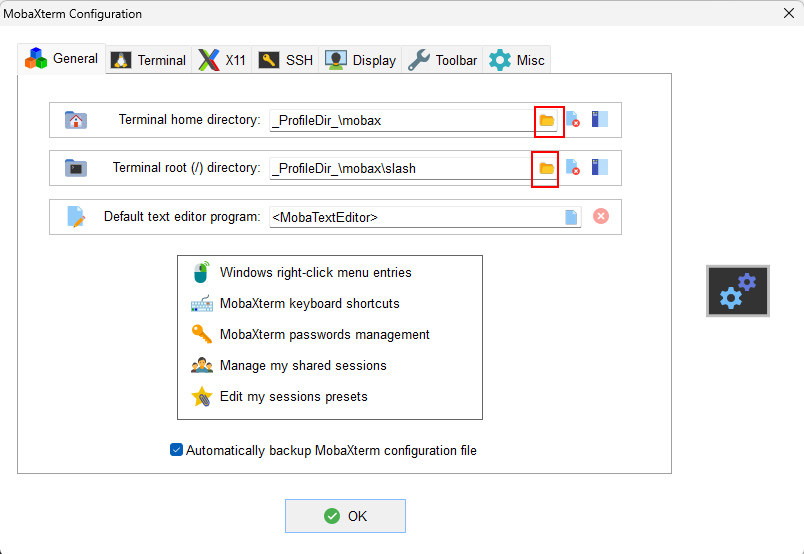
Setting persistent Home and Root Directories.
After setting your directories, click “Start local terminal”. You can generate an SSH key pair the same way as for the OpenSSH client, by following the instructions on that page.
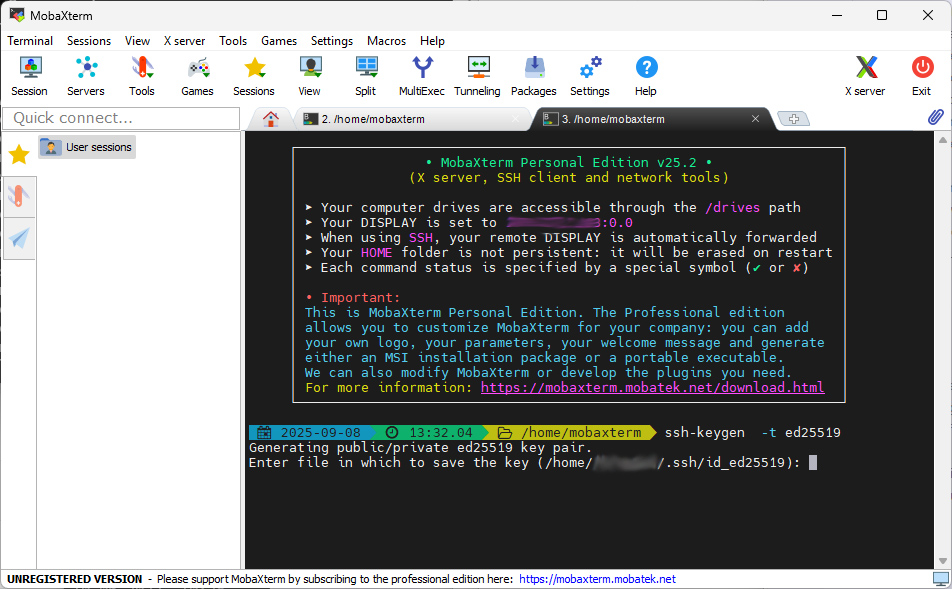
Generating an ed25519 key with MobaXterm.
To find the simulated home directory again, type open /home/mobaxterm and hit the enter key.
This will open Windows Explorer with the correct path.
Under this directory (it should be the one you configured earlier) there should be a .ssh directory with your private and public keys.
Setting up Sessions or Shortcuts
Info
This example establishes a connection to the Emmy Phase 3 login nodes. Please replace the hostnames with the correct ones for the cluster island you intend to use.
First click on “New session” either from the main screen or menu bar.
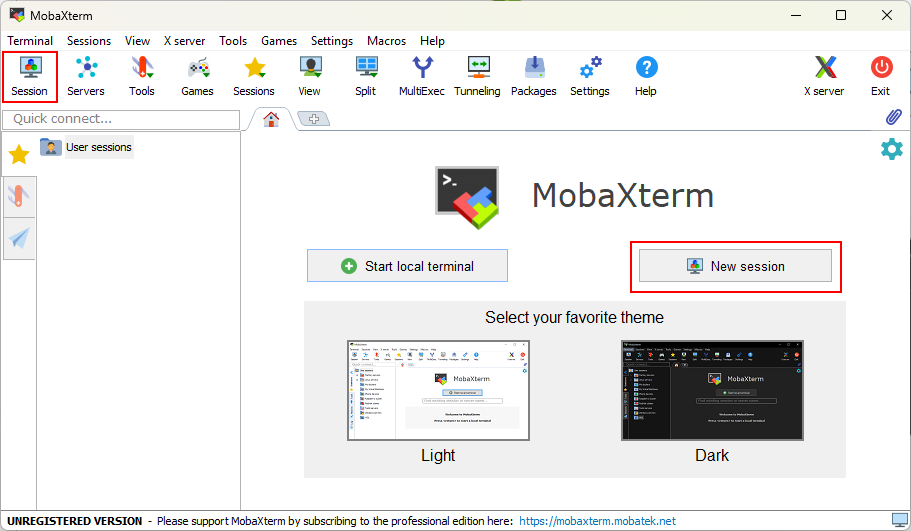
Select "New session"
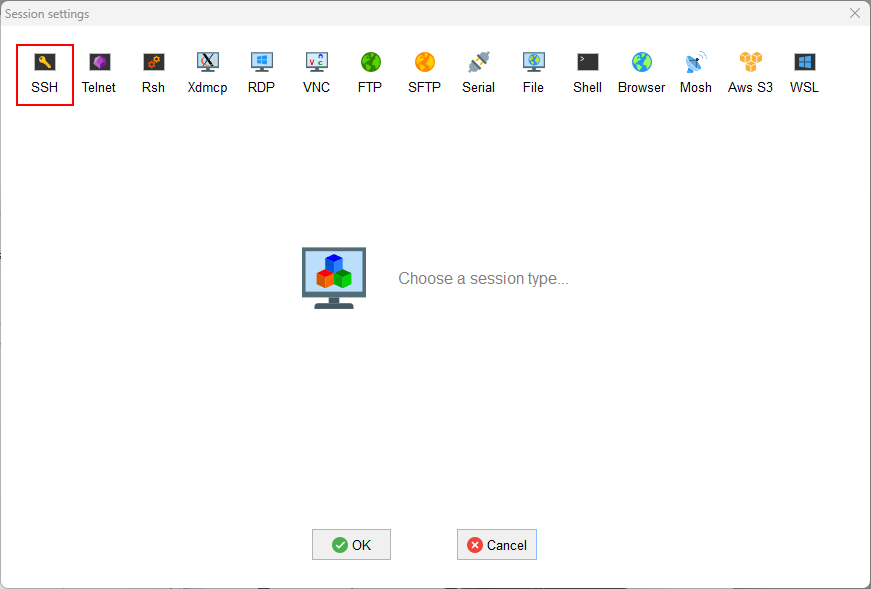
Select SSH from the menu bar (top left)
Note
Replace u12345 with your assigned username.
Now click on Advanced SSH settings Then click the browse button to select the location of the private key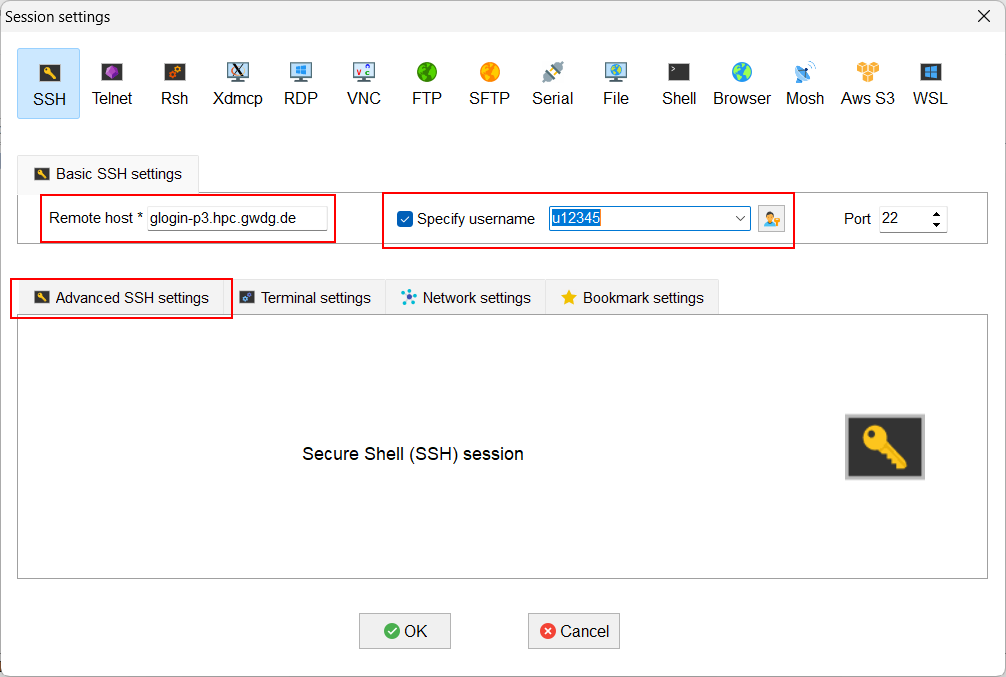
Enter the remote hostname and your username
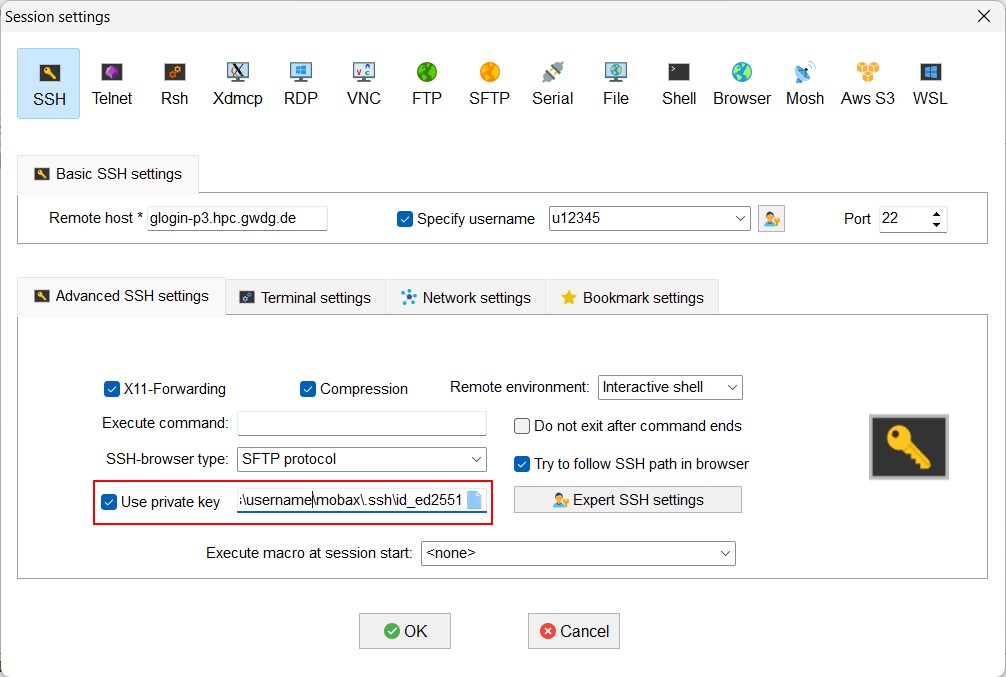
Check the box to use a private key
Bookmark name
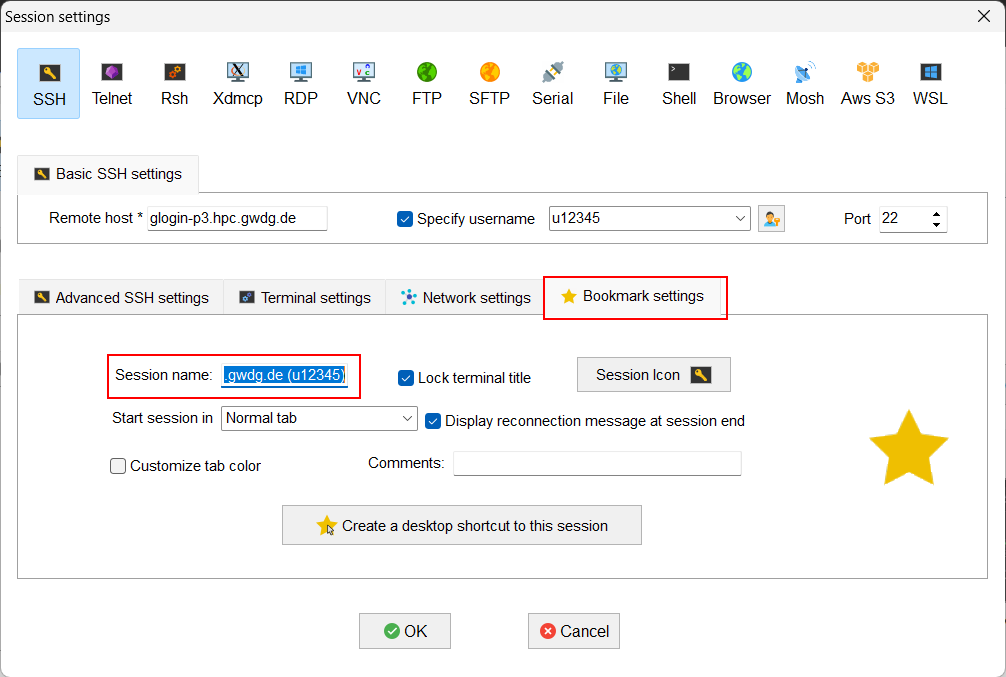
Select the Bookmark tab
In the bookmark dialog, you can set a meaningful name for the connection
After completing all the steps, click the OK button. MobaXterm will then open the connection automatically.
Connecting
When loading saved session or on the first connection, you will be asked if you want to trust this connection. Accept the connection.
you can then set the checkbox to not show this message again This is the password that you have set during the SSH key generation process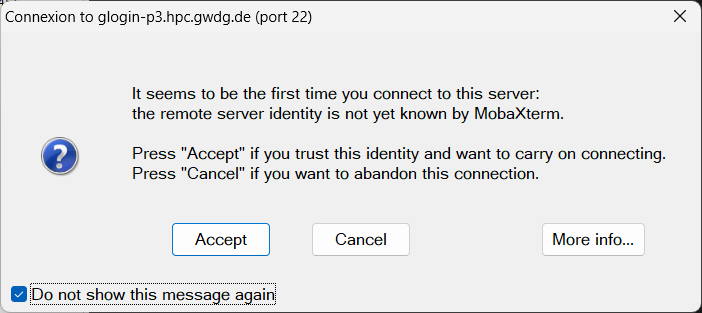
Accept the connection
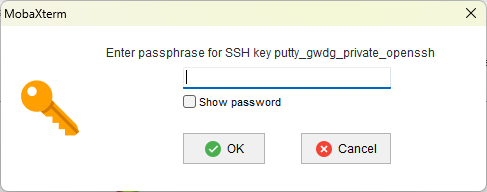
Enter the password for the SSH private key
The connection should now be established. If you look at the interface again, you will see the new session as bookmark to the left.
On the left you can see your saved session. To connect to the HPC frontend, make a double click on the session name This is how a successful connection should look like (with SCC front end as an example)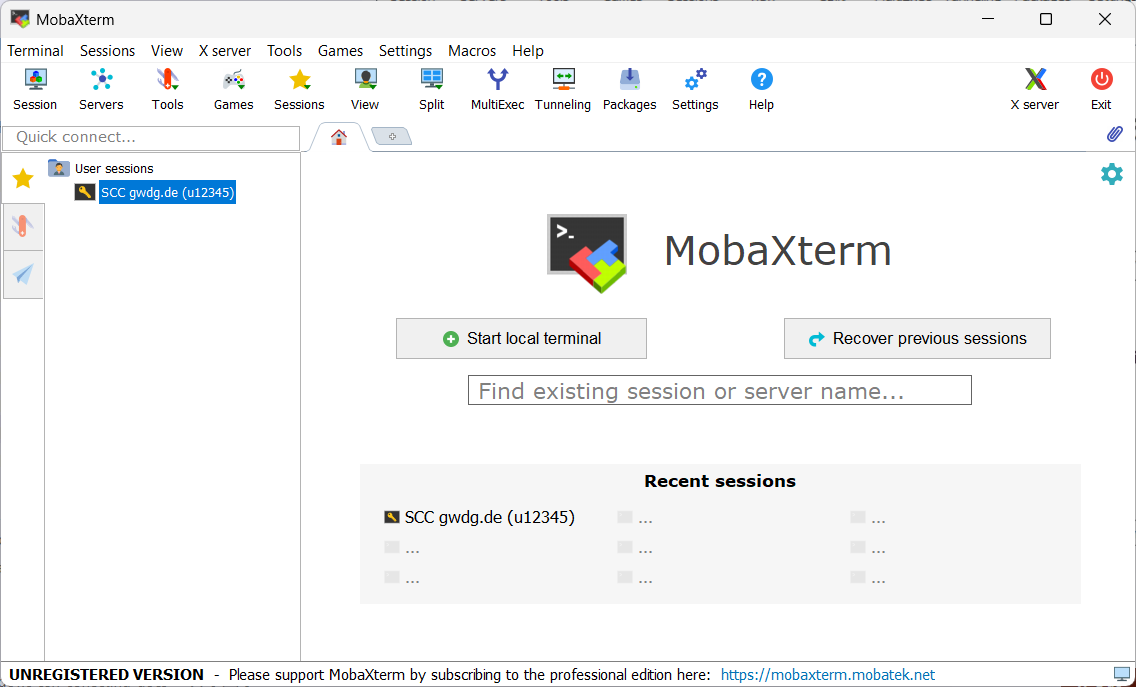
MobaXterm with the new saved session
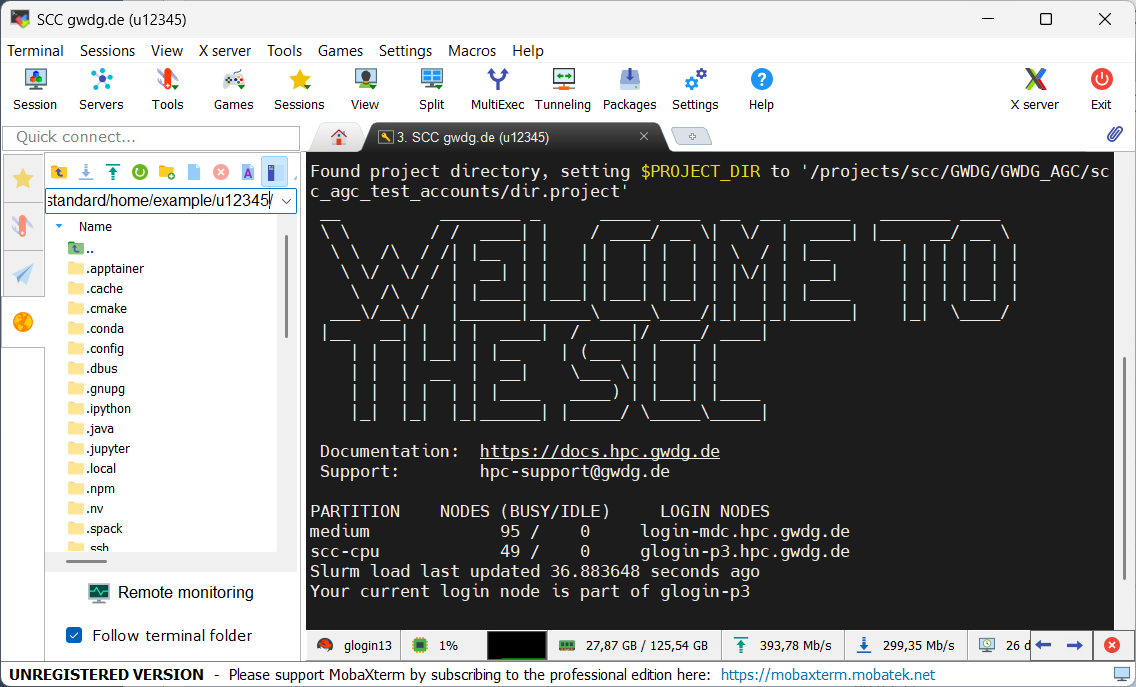
MobaXterm with established connection
Tip
MobaXterm also supports the PuTTY private key format (.ppk) and displays saved PuTTY connections automatically. Both clients can be used in parallel.
Using a Jumphost (Optional)
Note
These steps are usually not necessary.
They are only required for the legacy SCC login nodes and dedicated frontend nodes for workgroups that have their own cluster island.
Check if your login node has a ProxyJump option in the examples on the main Configuring SSH page.
If in doubt, ignore this section.
and click on the SSH gateway (jumphost) button Click the browse button next to the private key field and select the same private key as you did earlier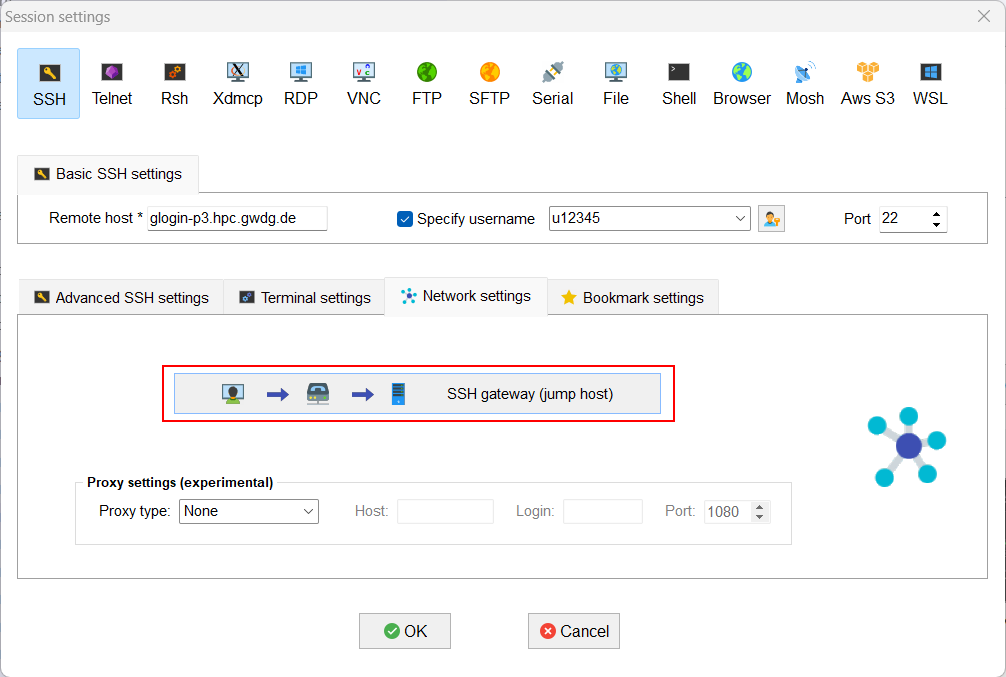
Go to Network settings
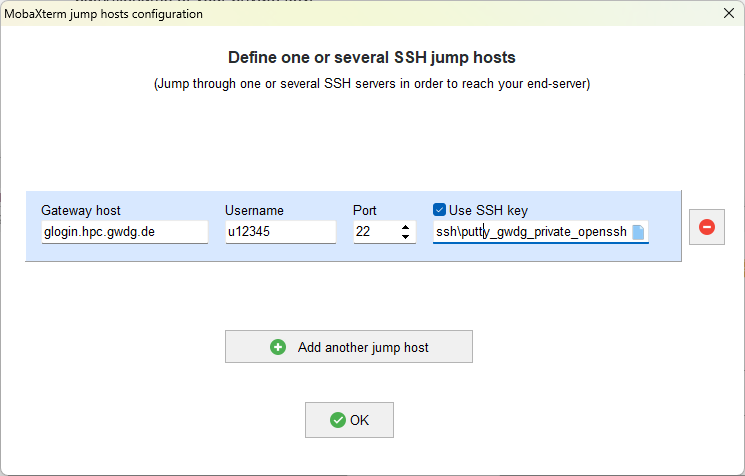
Enter the gateway hostname and your username and select "Use SSH key"