SAIA (API Management)
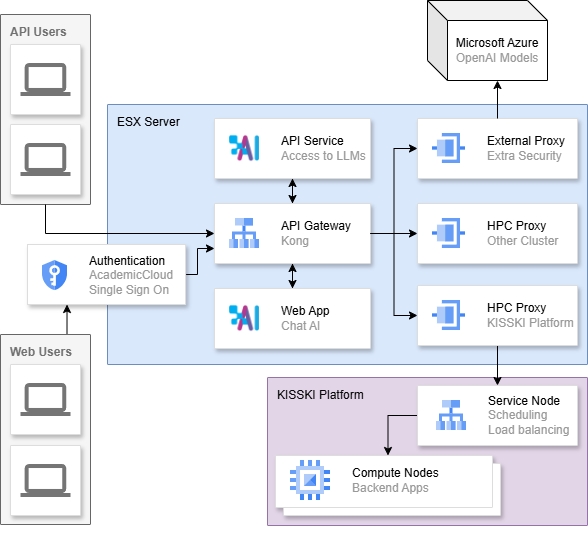
SAIA is the Scalable Artificial Intelligence (AI) Accelerator that hosts our AI services. Such services include Chat AI and CoCo AI, with more to be added soon. SAIA API (application programming interface) keys can be requested and used to access the services from within your code.
API keys are not necessary to use the Chat AI web interface.
The SAIA API is suitable for interactive inference scenarios. If you have a large amount (eg. thousands of LLM queries) of requests that you can process asynchronously, the batch paradigm of our HPC cluster is the better choice. Your batch will be completed more predictably, in less time, and with lower cost. Check out how to get started with our HPC cluster and then running LLMs to learn how you can setup up a batch inference job on the cluster. vLLM is another popular choice for LLM inference.
API Request
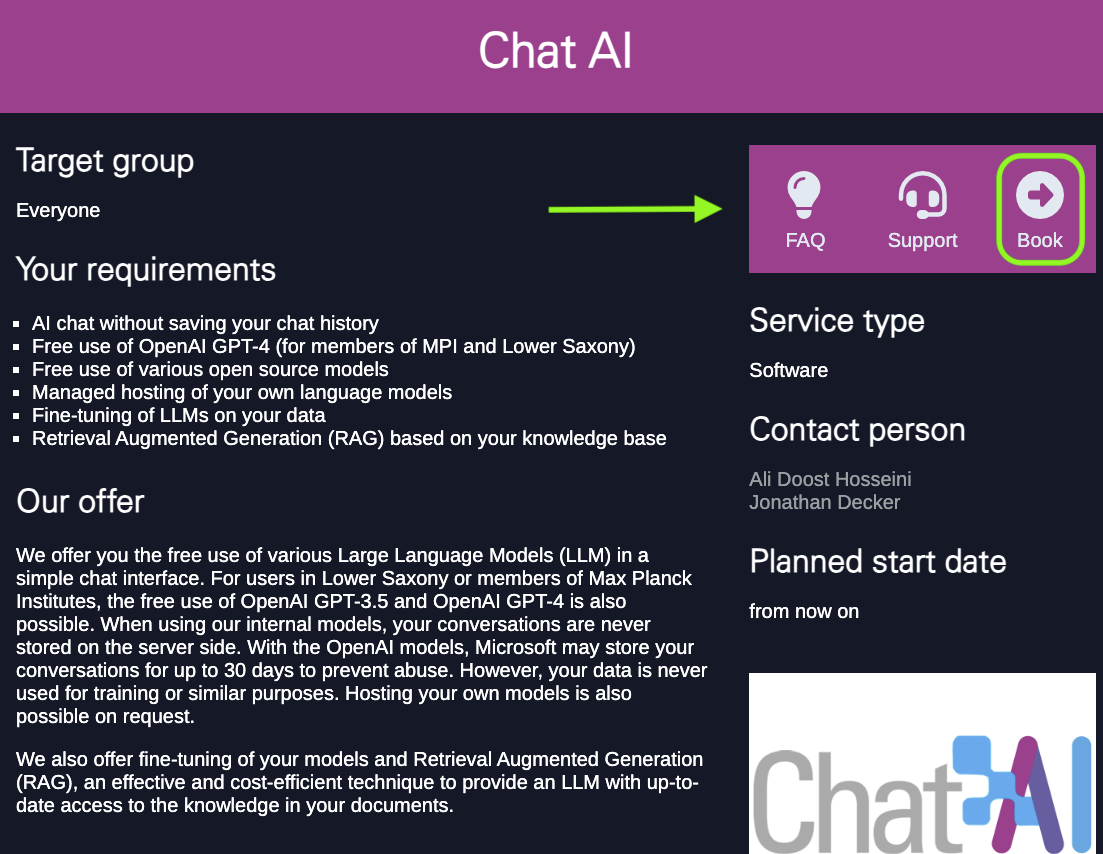
If a user has an API key, they can use the available models from within their terminal or python scripts. To get access to an API key, go to the KISSKI LLM Service page and click on “Book”. There you will find a form to fill out with your credentials and intentions with the API key. Please use the same email address as is assigned to your Academic Cloud account. Once received, DO NOT share your API key with other users!
API Usage
The API service is compatible with the OpenAI API standard. We provide the following endpoints:
/chat/completions/completions/embeddings/models/documents
API Minimal Example
You can use your API key to access Chat AI directly from your terminal. Here is an example of how to do text completion with the API.
curl -i -X POST \
  --url https://chat-ai.academiccloud.de/v1/chat/completions \
  --header 'Accept: application/json' \
  --header 'Authorization: Bearer <api_key>' \
  --header 'Content-Type: application/json'\
  --data '{
  "model": "meta-llama-3.1-8b-instruct",
  "messages":[{"role":"system","content":"You are an assistant."},{"role":"user","content":"What is the weather today?"}],
  "max_tokens": 7,
  "temperature": 0.5,
  "top_p": 0.5
}'
Ensure to replace <api_key> with your own API key.
API Model Names
For more information on the respective models, see the model list.
| Model Name | Capabilities |
|---|---|
| deepseek-v4-flash-0731 | text |
| gemma-4-31b-it | text, image |
| glm-5.3-flash | text, image |
| meta-llama-3.1-8b-instruct | text |
| qwen3.5-397b-a17b | text, image |
| qwen3.6-35b-a3b | text, image |
| qwen3.8-27b | text, image |
| qwen3-30b-a3b-instruct-2507 | text |
| qwen3-coder-next | text, code |
| qwen3-omni-30b-a3b-instruct | text, omni |
| e5-mistral-7b-instruct | embeddings |
| multilingual-e5-large-instruct | embeddings |
| qwen3-embedding-4b | embeddings |
A complete up-to-date list of available models can be retrieved via the following command:
curl -X POST \
  --url https://chat-ai.academiccloud.de/v1/models \
  --header 'Accept: application/json' \
  --header 'Authorization: Bearer <api_key>' \
  --header 'Content-Type: application/json'
API Usage Examples
The OpenAI (external) models are not generally available for API usage.
For configuring your own requests in greater detail, such as setting the frequency_penalty,seed,max_tokens and more,
refer to the openai API reference page.
Chat
It is possible to import an entire conversation into your command. This conversation can be from a previous session with the same model or another, or between you and a friend/colleague if you would like to ask them more questions (just be sure to update your system prompt to say “You are a friend/colleague trying to explain something you said that was confusing”).
curl -i -N -X POST \
  --url https://chat-ai.academiccloud.de/v1/chat/completions \
  --header 'Accept: application/json' \
  --header 'Authorization: Bearer <api_key>' \
  --header 'Content-Type: application/json'\
  --data '{
  "model": "meta-llama-3.1-8b-instruct",
  "messages": [{"role":"system","content":"You are a helpful assistant"},{"role":"user","content":"How tall is the Eiffel tower?"},{"role":"assistant","content":"The Eiffel Tower stands at a height of 324 meters (1,063 feet) above ground level. However, if you include the radio antenna on top, the total height is 330 meters (1,083 feet)."},{"role":"user","content":"Are there restaurants?"}],
  "temperature": 0
}'
For ease of usage, you can access the Chat AI models by executing a Python file, for example, by pasting the below code into the file.
from openai import OpenAI

# API configuration
api_key = '<api_key>' # Replace with your API key
base_url = "https://chat-ai.academiccloud.de/v1"
model = "meta-llama-3.1-8b-instruct" # Choose any available model

# Start OpenAI client
client = OpenAI(
    api_key = api_key,
    base_url = base_url
)

# Get response
chat_completion = client.chat.completions.create(
        messages=[{"role":"system","content":"You are a helpful assistant"},{"role":"user","content":"How tall is the Eiffel tower?"},{"role":"assistant","content":"The Eiffel Tower stands at a height of 324 meters (1,063 feet) above ground level. However, if you include the radio antenna on top, the total height is 330 meters (1,083 feet)."},{"role":"user","content":"Are there restaurants?"}],
        model= model,
    )

# Print full response as JSON
print(chat_completion) # You can extract the response text from the JSON object
In certain cases, a long response can be expected from the model, which may take long with the above method, since the entire response gets generated first and then printed to the screen. Streaming could be used instead to retrieve the response proactively as it is being generated.
from openai import OpenAI

# API configuration
api_key = '<api_key>' # Replace with your API key
base_url = "https://chat-ai.academiccloud.de/v1"
model = "meta-llama-3.1-8b-instruct" # Choose any available model

# Start OpenAI client
client = OpenAI(
    api_key = api_key,
    base_url = base_url
)

# Get stream
stream = client.chat.completions.create(
    messages=[
        {
            "role": "user",
            "content": "Name the capital city of each country on earth, and describe its main attraction",
        }
    ],
    model = model ,
    stream = True
)

# Print out the response
for chunk in stream:
    print(chunk.choices[0].delta.content or "", end="")
For certain reasoning models, it may be possible to explicitly enable or disable reasoning from the API, which is often described in the documentation page of the model. For example, the documentation to enable or disable reasoning for Qwen 3.6 35B A3B can be found here.
If you use Visual Studio Code or Jetbrains as your IDE, the recommended way to maximise your API key ease of usage, particularly for code completion, is to install the Continue plugin and set the configurations accordingly. Refer to CoCo AI for further details.
Azure API
Some of our customers may come in contact with the Azure OpenAI API.
This API is compatible with the OpenAI API, barring minor differences in the JSON responses and the endpoint handling.
The official OpenAI Python client offers an AzureOpenAI client to account for these differences.
In SAIA, as the external, non open-weight models are obtained from Microsoft Azure, we created a translation layer to ensure OpenAI compatibility of the Azure models.
List of known differences:
- Addition of
content_filter_resultsin the responses of Azure models.
Image
The API specification is compatible with the OpenAI Image API. However, fetching images from the web is not supported and must be uploaded as part of the requests.
See the following minimal example in Python.
import base64
from openai import OpenAI

# API configuration
api_key = '<api_key>' # Replace with your API key
base_url = "https://chat-ai.academiccloud.de/v1"
model = "internvl3.5-30b-a3b" # Choose any available model

# Start OpenAI client
client = OpenAI(
    api_key = api_key,
    base_url = base_url,
)

# Function to encode the image
def encode_image(image_path):
  with open(image_path, "rb") as image_file:
    return base64.b64encode(image_file.read()).decode('utf-8')

# Path to your image
image_path = "test-image.png"

# Getting the base64 string
base64_image = encode_image(image_path)

response = client.chat.completions.create(
  model = model,
  messages=[
    {
      "role": "user",
      "content": [
        {
          "type": "text",
          "text": "What is in this image?",
        },
        {
          "type": "image_url",
          "image_url": {
            "url":  f"data:image/jpeg;base64,{base64_image}"
          },
        },
      ],
    }
  ],
)
print(response.choices[0])
Text to Image
curl -i -N -X POST \
  --url https://chat-ai.academiccloud.de/v1/images/generations \
  --header 'Accept: application/json' \
  --header 'Authorization: Bearer <key>' \
  --header 'Content-Type: application/json' \
  --data '{
    "prompt": "flower",
    "response_format": "b64_json",
    "model": "flux",
    "size": "1024x1024",
    "n": 1,
    "quality": "standard"
}'
Replace <key> with the key provided by GWDG.
This curl command uses Flux.1-schnell as its backend model.
Image to Image
 curl https://chat-ai.academiccloud.de/v1/images/edits/ \
 -H "Authorization: Bearer <key>" \
 -H "Content-Type: multipart/form-data" \
 -H "inference-service: image-edit-2511" \
 -F "prompt=make style to Van-Gogh" \
 -F "image=@./<img.png or jpg>" \
 -o "edited_output.png"
Replace <key> with the key provided by GWDG, and <img> with your image.
This curl command uses Qwen-Image-Edit-2511 as its backend model.
Voice to Text
 curl -i 'https://saia.gwdg.de/v1/audio/<translations|transcriptions>' \
  --header 'Accept: /' \
  --header 'Authorization: Bearer <key>' \
  -H "Content-Type: multipart/form-data"\
  -F model="<whisper-large-v2|whisper-large-v3>" \
  -F "file=@./<voice.wav|mp4|mp3|flac>" \
  -F response_format="<json|verbose_json|text|srt|vtt>" \
  -F diarize="<true|false>" \
  -F prompt="<optional transcription context>"
Replace <key> with the API key provided by GWDG, choose either translations or transcriptions (i.e. remove the angle brackets < and > and the respective term in <translations|transcriptions>), select a supported model (whisper-large-v2 or whisper-large-v3), specify the path to your audio file after the @ character (both relative paths beginning with @./ and absolute paths starting with @/ are possible), and optionally set the response format (json, verbose_json, text, srt, or vtt), speaker diarization (true or false), and a transcription prompt to provide an optional additional context.
Embeddings
Embeddings are only available via the API and support the same API as the OpenAI Embeddings API.
See the following minimal example.
curl https://chat-ai.academiccloud.de/v1/embeddings \
  -H "Authorization: Bearer <api_key>" \
  -H "Content-Type: application/json" \
  -d '{
    "input": "The food was delicious and the waiter...",
    "model": "e5-mistral-7b-instruct",
    "encoding_format": "float"
  }'
See the following code example for developing RAG applications with llamaindex: gitlab-ce.gwdg.de/hpc-team-public/chat-ai-llamaindex-examples
RAG/Arcanas
Arcanas are also accessible via the API interface.
A minimal example using curl is this one:
curl -i -X POST \
  --url https://chat-ai.academiccloud.de/v1/chat/completions \
  --header 'Accept: application/json' \
  --header 'Authorization: Bearer <api_key>' \
  --header 'Content-Type: application/json'\
  --header 'inference-service: saia-openai-gateway'\
  --data '{
    "model": "qwen3-30b-a3b-instruct-2507",
    "messages":[{"role":"system","content":"You are an assistant."},{"role":"user","content":"What is Chat-Ai?"}],
    "enable-tools": true,
    "arcana" : {
      "id": "<the Arcana ID>"
    },
    "temperature": 0.0,
    "top_p": 0.05
  }'
Docling
SAIA provides Docling as a service via the API interface on this endpoint:
https://chat-ai.academiccloud.de/v1/documents/convert/file
The Docling Service is based on the docling-serve GitHub repository.
A minimal example using curl is:
curl --request POST \
  --url https://chat-ai.academiccloud.de/v1/documents/convert/file \
  --header 'Authorization: Bearer <api_key>' \
  --header 'accept: application/json' \
  --header 'Content-Type: multipart/form-data' \
  --form files=@/path/to/your/file.pdf
The result is a JSON response like:
{
  "document": {
    "filename": "example_document.pdf",
    "md_content": "## Your Markdown content ...",
    "json_content": null,
    "html_content": null,
    "text_content": null,
    "doctags_content": null,
    "doclang_content": null
  },
  "status": "success",
  "errors": [],
  "processing_time": 11.121077820658684,
  "timings": {},
  "confidence": {
    "parse_score": 1.0,
    "layout_score": 0.865106456620538,
    "table_score": null,
    "ocr_score": 0.76775223972639,
    "mean_score": 0.8806725274570136,
    "low_score": 0.7567954247288978,
    "mean_grade": "good",
    "low_grade": "fair"
  }
}
The converted content is returned inside the document object. Depending on the requested output format, the content is placed in the corresponding field (md_content for Markdown, html_content for HTML, json_content for JSON, text_content for plain text, doctags_content for DocTags).
The response also includes:
status:successor an error statuserrors:a list of any errors encountered during conversionprocessing_time:total conversion time in secondsconfidence:quality scores for the conversion (parse_score,layout_score,table_score,ocr_score), plus an overallmean_score/low_scoreand the corresponding gradesmean_grade/low_grade(e.g.excellent,good,fair,poor)
Extracting the Content
To extract only the Markdown content from the response, you can use the jq tool in the command line (this can e.g. be installed with sudo apt install jq on Debian based Linux distributions).
Note that the content lives at document.md_content.
You can also store the output in a file by appending > <output-file-name> to the command:
curl --request POST \
  --url https://chat-ai.academiccloud.de/v1/documents/convert/file \
  --header 'Authorization: Bearer <api_key>' \
  --header 'accept: application/json' \
  --header 'Content-Type: multipart/form-data' \
  --form files=@/path/to/your/file.pdf \
  | jq -r '.document.md_content' \
  > output.md
For other output formats, extract the matching field; for example jq -r '.document.html_content' for HTML.
Advanced Settings
You can use advanced settings in your request by adding form fields (--form key=value):
| Form field | Values | Description |
|---|---|---|
image_export_mode | placeholder, embedded, referenced | How images are represented in the output. placeholder inserts an <!-- image --> marker; embedded includes images inline; referenced returns image references |
include_images | true or false | Whether images are included in the output |
pdf_backend | pypdfium2, dlparse_v1, dlparse_v2, dlparse_v4 | The PDF parsing backend to use |
do_ocr | true or false | Enable OCR (optical character recognition) for scanned or image-based documents. Enabled by default |
do_formula_enrichment | true or false | Convert mathematical formulas into LaTeX. Disabled by default (see note below) |
do_code_enrichment | true or false | Convert code blocks into structured text. Disabled by default (see note below) |
code_formula_preset | codeformulav2, granite_docling | Preset ID for code/formula enrichment. Necessary for formula_enrichtment / code_enrichment |
For example, to convert a file with images exported as placeholders, using the pypdfium2 backend and without including images:
curl --request POST \
  --url https://chat-ai.academiccloud.de/v1/documents/convert/file \
  --header 'Authorization: Bearer <api_key>' \
  --header 'accept: application/json' \
  --header 'Content-Type: multipart/form-data' \
  --form files=@/path/to/your/file.pdf \
  --form image_export_mode=placeholder \
  --form pdf_backend=pypdfium2 \
  --form include_images=false
Formula and Code Enrichment (Optional Features)
For best performance formula enrichment, and code enrichment are disabled by default. The service automatically extracts the existing text layer from documents, which is fast and accurate for the vast majority of files (born-digital PDFs, Office documents, etc.). You only need to enable these options for specific cases:
do_formula_enrichment=true:Enable this when you need mathematical formulas converted to LaTeX (e.g. scientific or math-heavy papers). This runs a dedicated vision-language model that generates LaTeX for each detected formula. Because it generates output token by token, it is significantly slower and should only be used for documents where formula extraction is actually required.do_code_enrichment=true:Enable this to extract and structure code blocks. Like formula enrichment, this uses a generative model and adds processing time, so enable it only when needed.code_formula_preset=codeformulav2:Necessary Preset ID for the enrichment functionalities above
Example: math paper with LaTeX formulas:
curl --request POST \
  --url https://chat-ai.academiccloud.de/v1/documents/convert/file \
  --header 'Authorization: Bearer <api_key>' \
  --header 'accept: application/json' \
  --header 'Content-Type: multipart/form-data' \
  --form files=@/path/to/math_paper.pdf \
  --form do_formula_enrichment=true \
  --form code_formula_preset=codeformulav2 \
  | jq -r '.document.md_content' \
  > output.md
Performance Notes
- Processing time depends heavily on the enabled features. With the default settings (no OCR, no enrichment), most documents convert in a few seconds (the
processing_timefield reports the actual duration). Enabling OCR on large scanned documents, or formula/code enrichment on content-heavy documents, can increase processing time substantially; up to several minutes for very large or formula-dense files. - Large documents are supported, but conversion time scales with page count and the enabled features. Allow for a longer response time when enabling OCR or enrichment on big documents.
- Supported input formats include PDF, DOCX, PPTX, HTML, Markdown, and common image formats.
- The
confidenceobject in the response can help you assess conversion quality. For example, a lowocr_scoreor alow_gradeofpoormay indicate a scanned document that would benefit from enablingdo_ocr=true, or a scan of insufficient quality.
API Limits
You can check your current API usage limits and remaining quota directly from the HTTP response headers.
Run the following command (replace <your-API-Key> with your actual key, and adjust the endpoint as needed):
curl -i -H "Authorization: Bearer <your-API-Key>" \
     -H "Content-Type: application/json" \
     https://saia.gwdg.de/v1/chat/completions
The response includes both the body and the rate-limit headers. Example output:
HTTP/2 400
content-type: application/json
content-length: 43
ratelimit-reset: 54
x-ratelimit-limit-minute: 10
x-ratelimit-limit-hour: 200
x-ratelimit-limit-day: 400
x-ratelimit-limit-month: 3000
ratelimit-remaining: 9
ratelimit-limit: 10
x-ratelimit-remaining-minute: 9
x-ratelimit-remaining-hour: 199
x-ratelimit-remaining-day: 399
x-ratelimit-remaining-month: 2999
date: Mon, 21 Sep 2026 07:09:05 GMT
server: uvicorn
x-kong-upstream-latency: 1
x-kong-proxy-latency: 0
via: kong/3.6.1
Interpreting the Headers
x-ratelimit-limit-*: maximum requests allowed per time window (minute, hour, day, month).x-ratelimit-remaining-*: how many requests are still available before hitting the limit.ratelimit-reset: time (in seconds) until the counter resets.
Developer reference
The GitHub repositories SAIA-Hub, SAIA-HPC and of Chat AI provide all the components for the architecture in the diagram above.
Citation
If you use SAIA in your research, services or publications, please cite us as follows:
@article{doosthosseini_saia_2026,
    title = {{SAIA}: a seamless {Slurm}-native solution for {HPC}-based services},
    volume = {82},
    issn = {1573-0484},
    url = {https://doi.org/10.1007/s11227-026-08508-3},
    doi = {10.1007/s11227-026-08508-3},
    number = {7},
    journal = {The Journal of Supercomputing},
    author = {Doosthosseini, Ali and Decker, Jonathan and Nolte, Hendrik and Kunkel, Julian},
    month = may,
    year = {2026},
    pages = {403},
}
Further services
If you have more questions, feel free to contact us at support@gwdg.de.