JupyterHPC Agentic AI Environment
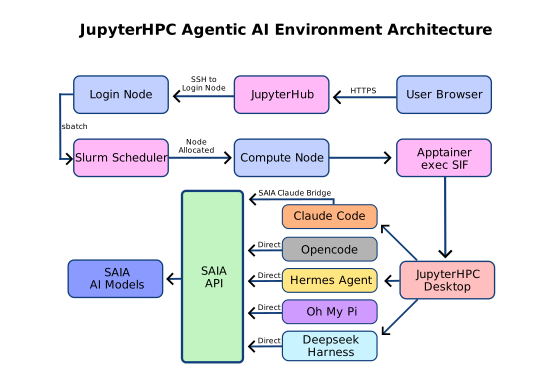
The JupyterHPC Agentic AI Environment is a containerized Linux desktop environment with a pre-installed suite of AI coding agents, accessible through JupyterHPC on the GWDG HPC cluster. It provides a full KDE Plasma desktop with tools like Claude Code, OpenCode, Hermes, and Odysseus, all pre-configured to use SAIA models hosted on GWDG infrastructure.
Why use the JupyterHPC Agentic AI Environment? The tools described on the Agentic Coding page can also be used on your local machine. The JupyterHPC Agentic AI Environment provides the same agentic coding capabilities but runs inside an Apptainer (Singularity) container on HPC compute nodes. This gives you a sandboxed, reproducible environment where the AI can read and edit your project files on the cluster filesystem, run terminal commands, and access the Internet, all from your browser, with no local installation required.
Overview
The JupyterHPC Agentic AI Environment is a Singularity Image Format (SIF) container built on Rocky Linux 8 with a full KDE Plasma desktop environment. It is spawned as a Slurm job through JupyterHPC and accessed via a web-based VNC client in your browser.
The container comes with five AI tools and one skill library pre-installed, all configured to use SAIA as the LLM backend:
| Tool | Type | Interface | SAIA Integration |
|---|---|---|---|
| Claude Code | CLI coding agent | Terminal | Via SaiaClaudeBridge (Anthropic to OpenAI translation) |
| OpenCode | CLI coding agent | Terminal | Direct OpenAI-compatible API via SAIA plugin |
| Hermes Agent | Multi-modal agent | Terminal | Custom SAIA provider config |
| DeepSeek Harness | Agent harness | Terminal + web UI | SAIA as LLM host |
| Oh My Pi | Agent / CLI tool | Terminal | SAIA as LLM host |
| ECC Skills | Skill library | Integrated into Claude Code, OpenCode, Hermes | N/A |
All tools share a single SAIA_API_KEY. Configure it once and every tool picks it up automatically.
Spawning the AI Desktop
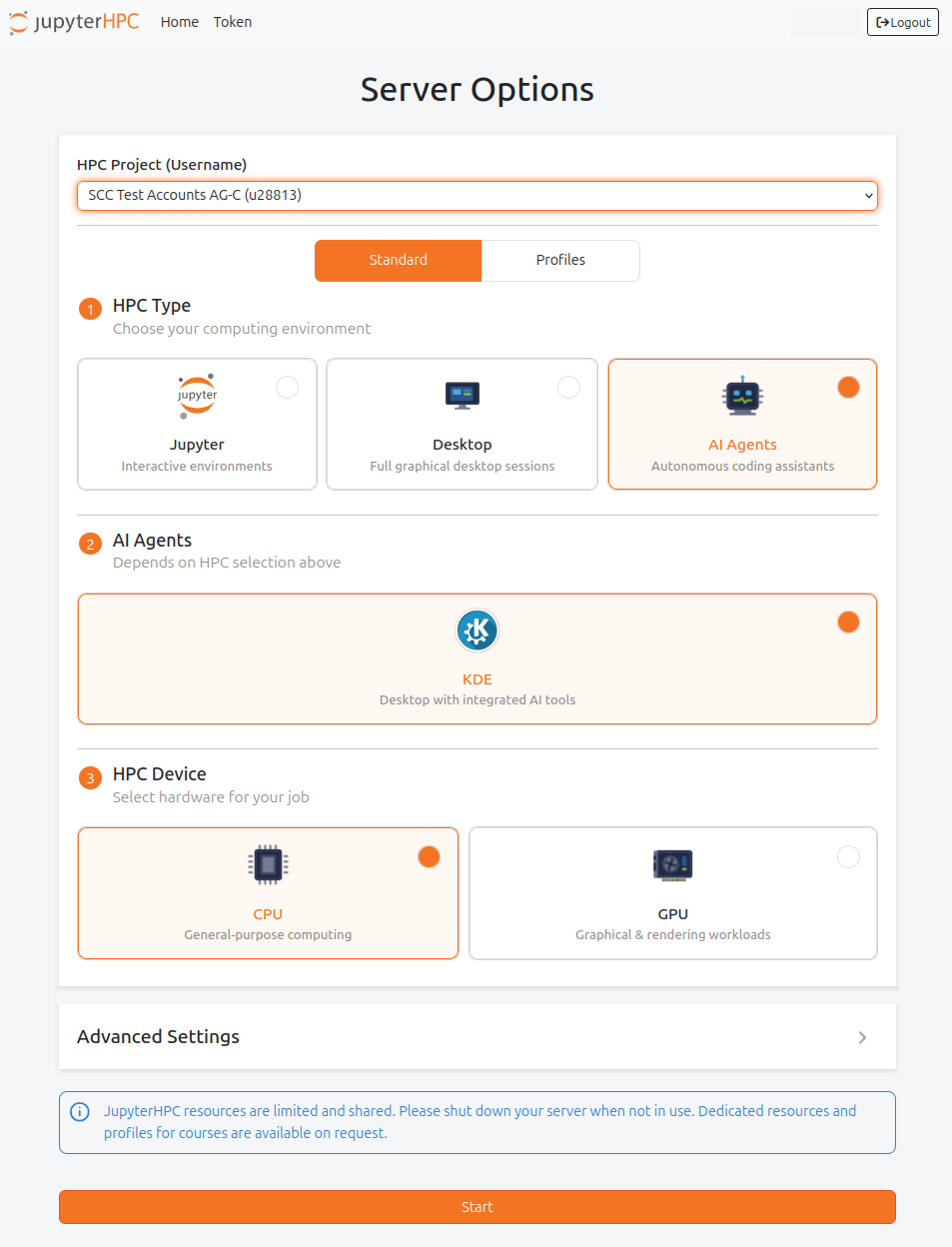
- Go to https://jupyter.hpc.gwdg.de and log in with your Academic Cloud account.
- On the Server Options page, configure:
- HPC Project: Select your project
- HPC Type: Select AI Agents
- AI Agents: Select KDE
- HPC Device: Choose CPU
- Click Start
Note
The first login takes slightly longer (about 10 to 20 seconds) as background setup runs (AI tool installation, skill deployment, config seeding). Subsequent logins are faster.
Once the desktop loads, you will see desktop icons for each AI tool. Double-click any icon to launch the tool in a terminal or browser window.
Setting Your SAIA API Key
All AI tools in the container require a SAIA API key. You only need to set it once, and it is shared across all tools.
Option 1: Desktop GUI (easiest)
After the KDE desktop loads, double-click the Setup SAIA API Key desktop icon. Enter your key in the dialog. It will be validated and applied to all tools immediately, with no logout required. Run the same icon again any time to change or rotate your key.
Option 2: User Config File (before or after Spawning)
The SAIA API key lives in your personal config file, not in any shell startup file:
mkdir -p ~/jupyter-agent
cat > ~/jupyter-agent/config.yaml << 'EOF'
saia:
  api_key: "your-key-here"
EOF
chmod 600 ~/jupyter-agent/config.yaml
If a session is already running, the key is picked up the next time you open a terminal (the login profile exports it). Otherwise log out and respawn the desktop. If no session is running yet, just spawn the desktop; the key is loaded automatically.
Warning
Do not put your SAIA API key into .bashrc or .bash_profile as a literal export SAIA_API_KEY=....
The container is designed so no secret needs to live in a shell startup file; the config file above is the supported method.
How the SAIA API key is handled:
- Stored once in
~/jupyter-agent/config.yaml(saia.api_key, mode 600; readable only by you) - Exported into the session as the
SAIA_API_KEYenvironment variable at login bykde-ai-config; never passed on command lines or visible inps - Masked by
kde-ai-config get/kde-ai-config dump(prints***set***, not the value) - Never baked into the container image; the image is identical for all users
To verify the key is loaded in a session, open a terminal on the AI desktop:
echo ${SAIA_API_KEY:+set}   # prints "set" if loaded
kde-ai-config get saia.api_key   # prints "***set***"
AI Tools
Claude Code
Claude Code is Anthropic’s CLI coding agent. It reads your codebase, edits files, runs terminal commands, and completes multi-step coding tasks autonomously.
In the JupyterHPC Agentic AI Environment, Claude Code is bridged to SAIA via saiaclaudebridge, a lightweight FastAPI service on localhost that translates the Anthropic API format to the OpenAI-compatible format that SAIA uses, including tool use and SSE streaming.
Claude Code Model Mapping
Claude Code sends model names like claude-sonnet-4-20250514 which SAIA doesn’t recognize.
The bridge automatically maps them to tool-calling-capable SAIA models:
| Claude Model | SAIA Model | Tool Calling | Use Case |
|---|---|---|---|
claude-sonnet-* | qwen3-coder-next | Yes | Coding (default) |
claude-opus-* | devstral-2-123b-instruct-2512 | Yes | Largest |
claude-haiku-* | deepseek-v4-flash-0731 | Yes | Fast |
Warning
Only SAIA models with tool calling support work with Claude Code. The bridge maps to tool-capable models automatically. Do not override with a non-tool model or Claude Code will fail. Please use the three models mentioned above, we do not support the selection of Fable and Sonnet 5 yet.
Launching Claude Code
Double-click the Claude Code desktop icon, or run from a terminal:
claudeThe bridge starts automatically if it’s not already running.
Claude Code ECC Skills
Claude Code ships with 278+ ECC skills deployed to ~/jupyter-agent/state/claude/skills/.
These are active by default.
Type /skills in Claude Code to list them.
To disable a skill, delete its folder from that directory.
OpenCode
OpenCode is an open-source, terminal-first AI coding agent. It generates code, modifies files, executes commands, and automates development tasks directly from the terminal.
In the JupyterHPC Agentic AI Environment, OpenCode is pre-configured with a SAIA provider plugin that automatically fetches the live model list from the SAIA API on every login. This means new SAIA models appear in OpenCode without any manual configuration.
Launching OpenCode
Double-click the OpenCode desktop icon, or run from a terminal:
opencodeOpenCode Modes
- Plan mode: Create structured plans for complex multi-step tasks
- Build mode: Execute approved plans, run automation, and build workflows
Press ⭾ Tab to toggle between Plan and Build modes.
OpenCode Basic Commands
| Command | Action |
|---|---|
/help | Show available commands |
/models | Switch between SAIA models |
| @ | Add a file as context |
| Y / Enter | Approve a proposed file change |
| N | Reject a proposed file change |
| A | Approve all proposed changes |
For more information, see the OpenCode documentation.
Hermes Agent
Hermes is NousResearch’s multi-modal AI agent. It supports text, image, and audio inputs, and includes 73 bundled skills for tasks like web search, deep research, file operations, and code execution.
In the JupyterHPC Agentic AI Environment, Hermes is pre-configured with a SAIA custom provider. The config is automatically refreshed on every login to ensure the default model is always valid against the current SAIA model list.
Launching Hermes
Double-click the Hermes Agent desktop icon, or run from a terminal:
hermesHermes Configuration
Hermes’ state lives in ~/jupyter-agent/state/hermes/ (config, conversation database, skills).
The default model is automatically updated according to what’s available on SAIA.
The launcher clears stale *.lock markers left by unclean exits, these would otherwise make Hermes refuse to save conversations.
To manually refresh the Hermes config with current SAIA models:
refresh-hermes-config.shYou can learn more about Hermes from the official documentation.
DeepSeek Harness
DeepSeek Harness (dsh) is an open-source framework from DeepSeek for building and running AI agents through a highly modular, plugin-based architecture.
It includes a web interface for interacting with agents and is configured to use SAIA-hosted models as the AI backend.
You can learn more about DeepSeek Harness from the official documentation.
Launching DeepSeek Harness
Double-click the DeepSeek Harness desktop icon, or run from a terminal:
dshIts permission mode is controlled by the container configuration (tools.dsh.permission_mode); there is no in-container sandbox backend; the SIF container itself is the security boundary.
Oh My Pi
Oh My Pi (omp) is a terminal-based coding agent with IDE-style tooling built directly into its agentic workflow.
It runs on a native Rust core and, in this environment, is configured to use SAIA-hosted models with the available model list refreshed at login.
You can learn more about Oh My Pi from the official documentation.
Launching Oh My Pi
Double-click the Oh My Pi desktop icon, or run from a terminal:
ompECC Skills Library
The container ships with 278+ skills from the ECC (Enterprise Claude Code) repository. These are deployed once per user on first login:
| Tool | ECC lands in | Behavior |
|---|---|---|
| Claude Code | ~/jupyter-agent/state/claude/skills/ (+ commands/, agents/) | All active; /skills lists them |
| OpenCode | ~/jupyter-agent/state/opencode/ (commands/, prompts/, tools/, plugins/) | Files deployed; opt-in at runtime |
| Hermes | ~/jupyter-agent/state/hermes/skills/ecc-imports/ | Files deployed; opt-in at runtime |
Skills are deployed with cp -n (no-clobber) exactly once; your own files are never overwritten.
You can add your own skills by dropping a folder into the same directories.
If you delete a skill and want it back, copy it from the read-only originals inside the container:
cp -r /opt/claude-template/skills/<skill-name> ~/jupyter-agent/state/claude/skills/Where Your Data Lives
The SIF container is immutable; it can never be modified at runtime and is identical for every user.
Everything that changes lives in ~/jupyter-agent/ on your HPC home directory:
~/jupyter-agent/
  config.yaml            your config overlay; holds saia.api_key (mode 600)
  state/                 per-tool state (conversations, DBs, skills)
    hermes/  opencode/  dsh/  omp/  claude/  saia/
  ai-tools/              per-user tool installs and wrappers
  xdg-config/  xdg-data/  xdg-state/  xdg-cache/
                         XDG directories; kept out of your normal
                         ~/.config / ~/.local so nothing collides
  logs/
Because the state tree is on your network home:
- It survives restarts; a new session on a different node resumes where you left off
- It survives image upgrades; the login-time migration adapts old state forward
- It is yours alone; mode 600 on the key file, nothing shared between users
Legacy migration: kde-ai-migrate-legacy.sh runs automatically at every login.
It moves older tool state (~/.hermes, ~/.claude, ~/.config/opencode, …) into the ~/jupyter-agent/ tree (leaving compatibility symlinks at the old paths) prunes stale lock files, and converts SQLite databases to rollback-journal mode (WAL is unreliable on network filesystems).
Running it repeatedly is safe.
Configuration system: kde-ai-config merges system defaults (/etc/kde-ai/config.yaml, read-only) with your overlay (~/jupyter-agent/config.yaml).
kde-ai-config get saia.base_url     # read a merged value
kde-ai-config dump                  # whole merged config (key masked)
kde-ai-config export                # env vars for tools (eval this)
kde-ai-config validate              # check your overlay for errors
Model Selection
All AI tools in the container use SAIA models. You can select from the full list of locally available models.
For agentic coding workloads, we recommend:
Tip
qwen3-coder-next; specialized coding model, best default for Claude Code and OpenCodedevstral-2-123b-instruct-2512; large coding-agent model, strong multi-file editingglm-5.3-flash; general-purpose agentic model with vision, strong tool-use capabilitiesdeepseek-v4-flash-0731; fast model for quick tasks and lighter workloads
Tool Calling Support
Claude Code and other agentic tools require models that support tool calling (function calling). The following SAIA models have been verified to support tool calling:
| Model | Tool Calling | Notes |
|---|---|---|
qwen3-coder-next | Yes | Coding-specialized, default for Claude Code |
qwen3.5-397b-a17b | Yes | Largest tool-capable Qwen model |
deepseek-v4-flash-0731 | Yes | Fast, good for quick tasks |
glm-5.3-flash | Yes | General-purpose, strong all-rounder |
devstral-2-123b-instruct-2512 | Yes | Coding-agent model |
apertus-70b-instruct-2509 | Yes | |
meta-llama-3.1-8b-instruct | Yes | Small, fast |
qwen3-30b-a3b-instruct-2507 | Yes |
Model availability changes over time; the live list can always be fetched with:
curl -s https://chat-ai.academiccloud.de/v1/models -H "Authorization: Bearer $SAIA_API_KEY"What Happens at Login
First Login (One-Time Setup)
A background process (non-blocking) runs at every login:
- Runs legacy migration; moves old tool state into
~/jupyter-agent/, prunes stale locks, converts SQLite journals - Exports tool environment;
kde-ai-config exportsetsSAIA_API_KEY, model lists, and per-tool state paths - Refreshes model configs; OpenCode plugin, Hermes, dsh, and omp configs are regenerated against the live SAIA model list
- Runs heavy first-login setup (once per user; sentinel
~/.cache/.kde-ai-first-login-done): seeds dsh/omp/Hermes configs and KDE tweaks - Deploys ECC skills (once per user; sentinel
~/.cache/.kde-ai-ecc-deployed-v3) - Seeds desktop icons for all AI tools to
~/Desktop/ - Auto-prompts for SAIA API key if none is configured yet (GUI dialog, once per session)
Security and Containment
The JupyterHPC Agentic AI Environment provides natural sandboxing for agentic AI tools through Apptainer container isolation:
- Read-only SIF: The container image is immutable. AI tools and system libraries cannot be modified at runtime.
- Filesystem isolation: The AI can only access what is mounted into the container (your HPC home directory).
- No root access: The container runs as your unprivileged HPC user. No root, no access to other users’ data.
- Network isolation: Outbound internet access is routed exclusively through the GWDG proxy, providing the same restrictions as any regular JupyterHPC user.
- Ephemeral sessions: When your Slurm job ends, the container is gone. A fresh spawn gives a clean environment.
- No secrets in shell files: Your SAIA key lives in a single mode-600 config file and is injected into the session environment at login; it is never written to
.bashrc/.bash_profile, never placed on command lines, and never baked into the image.
Your HPC home directory is mounted read-write, so the AI can read and edit your project files there.
Session history, tool configs, and installed skills persist under ~/jupyter-agent/ across sessions.
Troubleshooting
Spawn Fails with Timeout
Check ~/current.jupyterhub.notebook.log on the login node for the actual error.
AI Tools Report no API Key
- Run the Setup SAIA API Key desktop icon to configure it interactively, or create
~/jupyter-agent/config.yamlas shown above and respawn - Do not export the key from
.bashrc/.bash_profile; that method is deprecated - Check that your overlay is valid YAML:
kde-ai-config validate
Warning You Are Running out of Diskspace
- Ignore, the warning is for the container and has nothing to do with your user directory.
- The container has only as much space as needed so the Linux desktop warns of low space.
APIConnectionError or Connection Error
- The GWDG CA bundle (
SSL_CERT_FILE) set by the job script can block external HTTPS. - Auto-fixed: The login profile script unsets
SSL_CERT_FILE. Log out and back in if you still see errors.
Hermes Refuses to Save Conversations
- Stale
*.lockmarkers after an unclean exit cause this; thehermeslauncher clears them automatically when no Hermes process is running - If it persists, quit all Hermes instances and run
kde-ai-migrate-legacy.shto prune locks and repair journal modes
OpenCode or Claude Not Found in Terminal
- Tool binaries live in
/usr/local/binand~/jupyter-agent/ai-tools/bin/ - These are added to PATH via profile scripts. If missing in your shell, open a fresh terminal or check
~/jupyter-agent/logs/for setup errors
Slurm Sbatch Socket Timed Out
This is a Slurm infrastructure issue, not a container problem.
The Slurm controller was temporarily unreachable.
Wait a few minutes and try spawning again.
If it persists, contact hpc-support@gwdg.de.
Manually Starting AI Tools
If desktop icons don’t work, start tools from a terminal:
| Tool | Command | Notes |
|---|---|---|
| Claude Code | claude | Routes through saiaclaudebridge to SAIA |
| OpenCode | opencode | SAIA plugin generates config at login |
| Hermes | hermes | State in ~/jupyter-agent/state/hermes/ |
| DeepSeek Harness | dsh | Agent harness with web UI |
| Oh My Pi | omp | Agent / CLI tool |