Code Completion
Many code editors feature LLM integration these days. Code completion tools provide inline suggestions as you type, helping you write code faster by predicting the next line. They help by completing function signatures and suggesting entire code blocks based on context. They also offer a chat interface for explaining, generating, and editing code directly in your editor.
Info
To use the internal models hosted on our platform with the below mentioned tools, you need a SAIA API key. If you don’t have one yet, refer to SAIA API keys to request one. The external models are not available via the API.
Contents
Continue
Setup
Visual Studio Code (or Jetbrains) is required as your IDE (Integrated Development Environment) to use CoCo AI.
Install the Continue extension from the VS Code Extension Marketplace. Continue is an open-source AI code assistant plugin that can query code snippets or even entire repositories using a selected model. Upon installation, Continue provides a short and easy-to-follow introduction to its features.
To use this service, you need to follow a few setup steps. After installing the Continue extension, click on its icon in the left sidebar of VS Code. This will open a new window. In the top-right corner of the chat box, you will see a “Local config” dropdown list. Click on it, and you should see a list of configuration files in YAML format (by default, there is only one file named “Local config”). Open the config.yaml file and paste the following configuration:
name: Chat AI
version: 1.0.0
schema: v1
models:
  - name: GLM-4.7
    provider: openai
    model: glm-4.7
    apiBase: https://chat-ai.academiccloud.de/v1
    apiKey: <api_key>
    defaultCompletionOptions:
      temperature: 0.2
      topP: 0.1
    roles:
      - autocomplete
      - chat
      - edit
Then, reload the window. After that, you should see a list of available models at the bottom bar of the chat box. By selecting a model, you can start using the code completion service.
Please note the following points when editing the config.yaml file:
The “provider”, regardless of the actual provider, must be one that is supported by Continue (such as OpenAI or Ollama).
The “model” name should be written entirely in lowercase letters.
The “apiKey” should be written without any parentheses or quotation marks.
The “roles” tells Continue what each model may be used for (chat, autocomplete, edit, etc.). At least one model must advertise autocomplete if you want the Tab-completion feature later.
For more detailed information about configuration in the Continue AI code agent, you can refer to their official documentation: docs.continue.dev
Note
Note that only a subset of all models available are included above. Furthermore, the openAI GPT 3.5 and 4 models are not available for API usage, and thus not available for CoCo AI. Other available models can also be included as above.
Make sure to replace <api_key> with your own API key (see here for API key request).
We recommend fine tuned coding models for code completion tasks: glm-5.3-flash, qwen3-coder-30b-a3b-instruct.
A full list of available models can be found here: Available Models / API names.
To access your data stored on the cluster from VSCode, see our Configuring SSH. This is not required for local code.
Basic configuration
Two important concepts to understand among completion options is temperature and top_P sampling.
temperatureis a slider from 0 to 2 adjusting the creativity, with closer to 0 being more predictable and closer to 2 being more creative. It does this by expanding or flattening the probabilities of the next token (response building block).top_pis a slider from 0 to 1 which adjusts the total population of probabilities considered for the next token. Atop_pof 0.1 would only mean the top 10 percent of cumulative probabilities is considered. Variatingtop_phas a similar effect on predictability and creativity astemperature, with larger values considered to increase creativity.
Predictable results, such as for coding, require low values for both parameters, and creative results, such as for brainstorming, require high values. See the table in the current models section for value suggestions.
Our suggestion is to set the above completion options for each model according to the table in Chat AI and switch between the models based on your needs. You can also store the model multiple times with different completion options and different names to refer to, such as below.
- name: Creative writing model
  provider: openai
  model: gemma-3-27b-it
  apiBase: https://chat-ai.academiccloud.de/v1
  apiKey: <api_key>
  defaultCompletionOptions:
    temperature: 0.7
    topP: 0.8
  roles: [chat]

- name: Accurate code model
  provider: openai
  model: glm-5.3-flash
  apiBase: https://chat-ai.academiccloud.de/v1
  apiKey: <api_key>
  defaultCompletionOptions:
    temperature: 0.2
    topP: 0.1
  roles: [chat, autocomplete]

- name: Exploratory code model
  provider: openai
  model: glm-5.3-flash
  apiBase: https://chat-ai.academiccloud.de/v1
  apiKey: <api_key>
  defaultCompletionOptions:
    temperature: 0.6
    topP: 0.7
  roles: [chat, autocomplete]
Another completion option to consider setting, particularly for long responses, is max_tokens.
It is a value less than the context-window that specifies how many tokens may be considered per prompt, plus generated for the response to that prompt.
Each model has a different context-window size (see the table in current models for sizes).
Similarly, each model has a default max_tokens length.
This length is optimal for most tasks, but could be changed for longer tasks, such as “Name the capital of each country in the world and one interesting aspect about it”.
The context-window wants to look at system info, chat history, its training memory, the last prompt and the previous tokens from the current response.
Therefore max_tokens limits the response generation in order not to risk degenerating the quality of the response by allocating context away from the other context sources.
This is why it is recommended to split a large task into smaller tasks for the requirement of smaller response generation.
It could be that this is difficult or unachievable however, in which case the max_tokens would be preferred to be increased (with the risk of degradation).
See API Use Cases for an example of how to change max_tokens.
Further configuration options can be found at the Continue configuration page.
Functionality
The three main abilities of the Continue plugin is to analyse code, generate code and resolve errors. A new useful ability is a tab autocomplete key shortcut that is still in Beta.
Analyse code
For all below commands, Ctrl can be substituted with Cmd for Mac users.
Highlight a code snippet and press the command Ctrl + L . This will open the Continue side bar with the snippet as context for the question of your choice. From this side bar you can also access any file in your repository, as well as provide different types of context, such as entire package or language documentations, problems, git, terminal, or even your entire codebase in your chosen repository. This can be done either by pressing @ or clicking the + Add Context button. Typical functionality is provided, such as opening multiple sessions, retrieving previous sessions and toggling full screen. Models can be changed easily to, say, a model with a creative configuration, to which prompts without context can be sent, the same way the web interface of Chat AI works.
Generating code
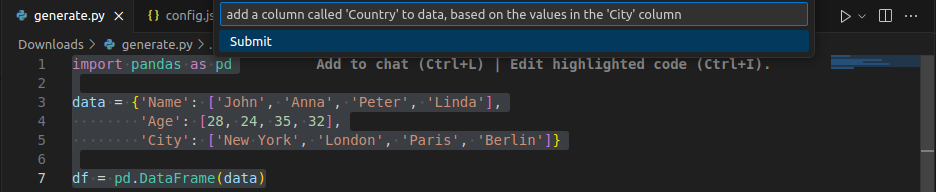
Highlight a code snippet and press the command Ctrl + I . This will open a dropdown bar where your prompt of choice about this code can entered. When entered, this will generate further code based on the code snippet, or edit the code snippet itself. These edits can range from correcting faulty code, generating in-line documentation, renaming functions, etc. The generated code and potentially deleted code will show in a format reminiscent of a git merge conflict with Accept and Reject options. Bear in mind that there is no clear indication within VSCode whether cluster resources are available for code generation or whether code generation is not being performed actually for some other reason. We suggest to wait a short moment before trying again.
Before code generation with prompt
After code generation
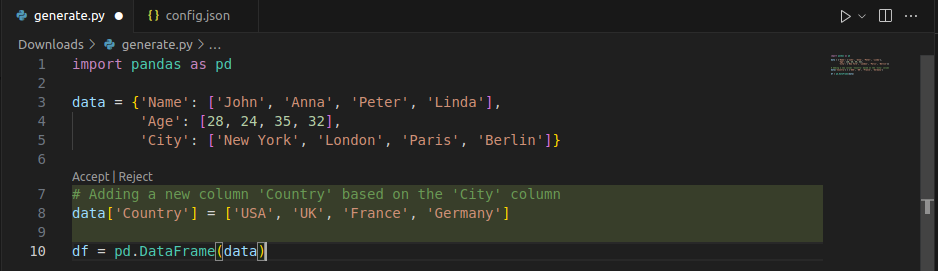
Notice from the example that the code completion model is capable of more than just generating what seems like functional code. It also has all the benefits and knowledge that is expected from an LLM: semantics, grouping and linguistic reasoning. There are still limitations to this knowledge based on the date until which model training was performed.
Resolve errors
If errors have been encountered in your VS Code Problems, Output or Terminal, press Ctrl + Shift + R to place the errors in-context in the Continue side bar and prompt a solution for them. The results of this would explain the errors in great detail and possibly provide solution code for the identified faulty code. The same could be done manually from the Continue sidebar by providing the error as context and requesting it to be fixed.
Tab Autocomplete
Continue repetitively analyses the other code in your current file, regardless of programming language, and provides suggestions for code to fill in. To enable this function, ensure that at least one model in config.yaml includes roles: [autocomplete]. A common pattern is to duplicate the GLM4.7 entry:
- name: GWDG Code Completion
  provider: openai
  model: glm-4.7
  apiBase: https://chat-ai.academiccloud.de/v1
  apiKey: "<api_key>"
  defaultCompletionOptions:
    temperature: 0.2
    topP: 0.1
  roles: [autocomplete]
If the model selected is not a model particularly well-trained for code completion, Continue will prompt you accordingly. Now you should receive code suggestions from the selected model and be able to insert the suggested code simply by pressing Tab , much like the functionality of the default code suggestions VS Code provides when inspecting the packages loaded. Both suggestions could appear simultaneously, for which pressing Tab would prioritise the VS Code functionality over Continue. It may happen also that there is a conflict of hotkeys between tabAutocomplete and tab spacing, in which case the tab spacing hotkey needs to be disabled or remapped in your VS Code settings. In Settings, go to Keyboard Shortcuts and search ’tab’, then disable or replace the keybinding of the tab command. You can disable tabAutocomplete with the commands Ctrl + K Ctrl + A . Unfortunately there is no way to change the keybind of tabAutocomplete.
It is also possible to step through an autocompletion suggestion word-by-word by typing
Ctrl
+
Right
. Note that
Ctrl
+
Left
does NOT undo any steps.
The below code example was almost entirely generated with tabAutocomplete only from initially typing def plus, beside the need for correcting some indentation.
Partial Tab Autocompletion
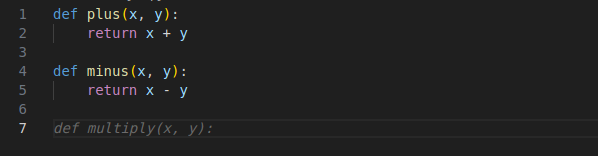
Full Tab Autocompletion
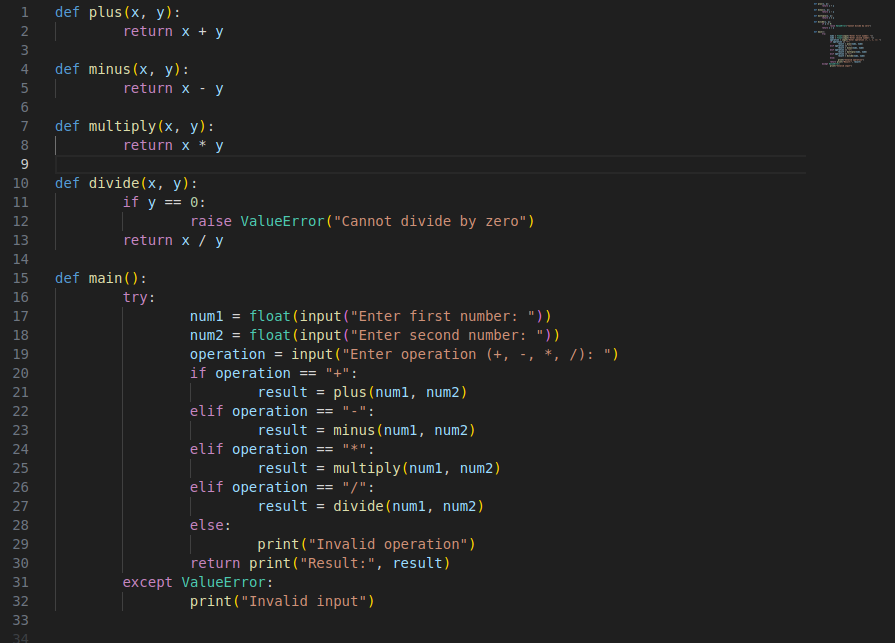
More information about tabAutocomplete, including further configuration options, can be found at the Continue documentation.
Zed
Zed is a popular VSCode competitor with builtin AI integration.
Since the Chat AI API is OpenAI compatible, we follow Zed’s documentation on that.
Your settings.json should look similar to the following:
{
  "language_models": {
    "openai": {
      "api_url": "https://chat-ai.academiccloud.de/v1",
      "available_models": [
        { "name": "glm-5.3-flash", "max_tokens": 200000 },
        { "name": "qwen3-coder-next", "max_tokens": 256000 },
        { "name": "gemma-3-27b-it", "max_tokens": 128000 }
      ],
      "version": "1"
    }
  }
}
The model names are taken from here, the context sizes from here.
Your API Key is configured via the UI. In the command palette open agent: open settings.
Set your API Key in the dialog for “OpenAI”.
For Zed’s AI editing functionality, check out their documentation.
MCP
The Model Context Protocol (MCP) is a common interface for LLM interfaces to call tools and receive additional context. Zed has builtin support for running MCP servers and letting LLMs call the exposed tools via the OpenAI API tool call requests automatically. Here is an example configuration to add a local MCP server to get you started:
{
  "context_servers": {
    "tool-server": {
      "command": {
        "path": "~/dev/tool-server/tool-server",
        "args": [
          "--transport",
          "stdio"
        ],
        "env": null
      },
      "settings": {}
    }
  }
}
Emacs
Emacs is an extensible, customizable, free/libre text editor and more.
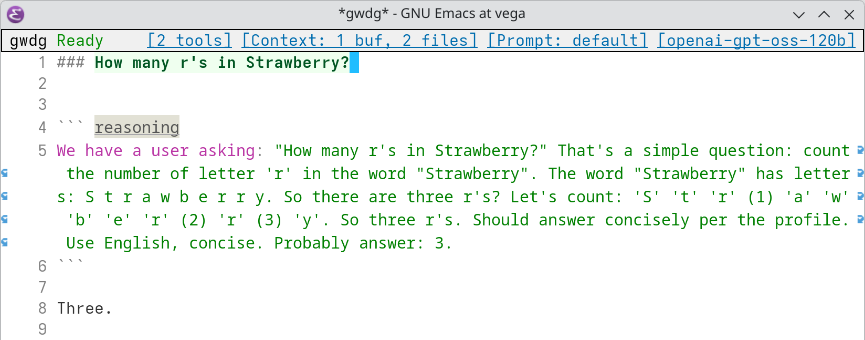
With the help of gptel, a simple Large Language Model client, we make use of LLMs from within Emacs.
gptel is available on MELPA and NonGNU-devel ELPA.
As SAIA implements the OpenAI API standard, the configuration is straight forward.
(setq gptel-model 'qwen3-30b-a3b-instruct-2507
      gptel-backend
      (gptel-make-openai "gwdg"
        :host "chat-ai.academiccloud.de"
        :endpoint "/v1/chat/completions"
        :stream t
        :key gptel-api-key
        :models '(gemma-3-27b-it
                  glm-5.3-flash
                  qwen3-coder-next
                  qwen3-30b-a3b-instruct-2507
         )
)
The SAIA API key is stored in ~/.authinfo.
machine chat-ai.academiccloud.de login apikey password <api_key>Now you can interact with LLMs from within Emacs.